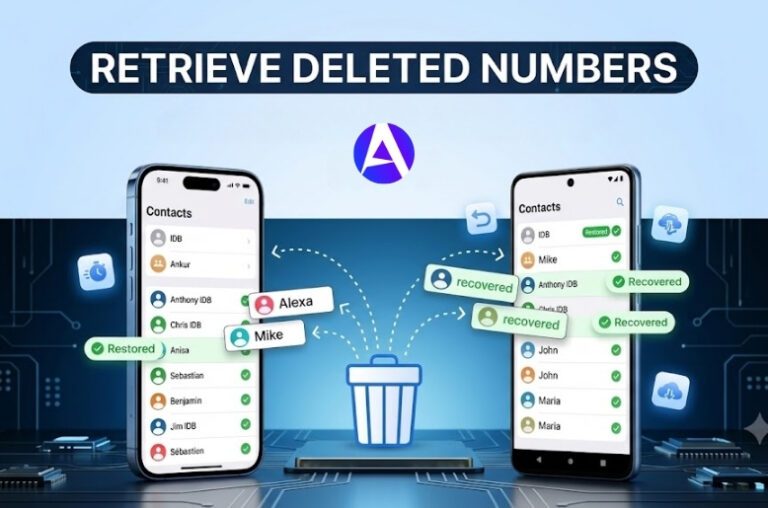

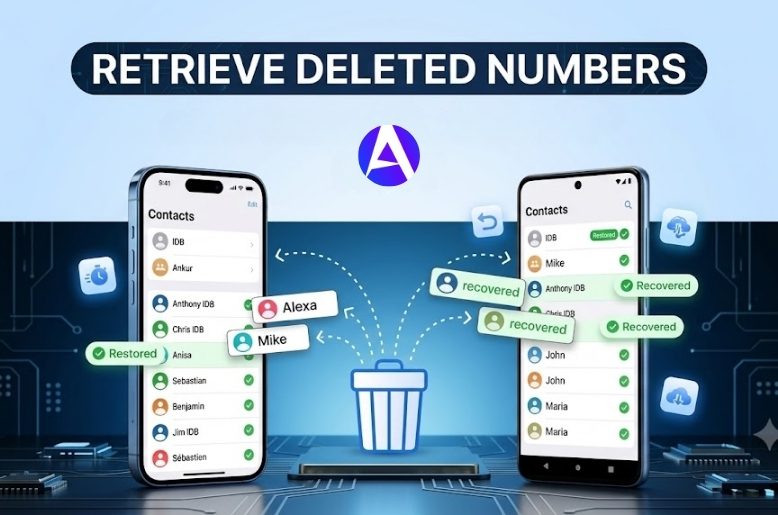
I can remember having a sense of panic caused by this problem; all it takes is one tap too many, and the number you want right now just seems to have vanished into thin air. The good news is that retrieving deleted phone numbers is usually much simpler than it feels like at the time!
Learn how to retrieve deleted numbers on iPhone and Android fast with proven methods to recover lost contacts quickly and easily.
Quick Answer
There are several different places you might be able to find your lost number: in Google Contacts Trash, iCloud’s archive, or in a recent device backup.
Google keeps your deleted phone numbers recoverable by you for 30 days after deletion; if you’ve deleted your contacts from iCloud, you can restore your archived contacts via iCloud.com. So before you assume that the number is gone forever, first check your synced account to see if you can retrieve it.
Can You Recover Deleted Phone Numbers?
Yes, usually, it is possible to recover a deleted contact. If the contact was deleted recently, the process should be fairly easy in most cases. If the contact was deleted on a device that uses Google as its operating system, the contact can probably be restored from the Trash folder or the Undo changes option, if it has been less than thirty days since the deletion.
If the contact was deleted on an iPhone device, Apple has created an option to restore contacts through iCloud.com, and if you have a backup of your device, you can also restore your device to an earlier point in time to recover the deleted contact. Essentially, the sooner you take action, the better your chances will be.
How To Retrieve Deleted Numbers On iPhone
Often, when a contact disappears from an iPhone, it’s due to an issue with the account rather than the phone itself. If your contacts sync via iCloud, there’s a good chance they can be restored using Apple’s restore tools and if they were also stored in a Google account, that account may also be usable for restoring the missing contacts.
In this scenario, picture your phone as a window while iCloud and Google would be acting as actual room storage. If the room still contains the item, the window can show it again.
1. Restore deleted contacts from iCloud
This is typically the simplest option for individuals using iPhones. To do this, go to iCloud.com/contacts, login using your Apple Account, access the data recovery menu, and select to restore contacts. You will see listed archived versions of your contacts by date and time, so you will be able to select a snapshot of your contacts prior to the number being deleted. According to Apple, if you deleted the contact very recently, the archived version may not be available for up to 24 hours.
2. Make sure Contacts syncing is turned on
If you are unable to sync your iPhone’s contact information with iCloud, restoring it will work; however, this does depend on what you mean when saying restoring.
The first step to follow is to set iCloud as your default contact storage account; Apple recommends that users do this to prevent their saved phone numbers from being connected to multiple contact storage accounts.
From an iPhone’s perspective, this means that you will need to go into your Contacts settings and verify that iCloud is the chosen account by which your contacts will be saved. Once you’ve made sure that the iPhone is configured to use iCloud as a source for contact information, you may want to consider this method a way to turn a temporary solution into a permanent solution and so you may want to avoid using any other type of backup and restore method.
3. Restore from an iCloud backup
A large volume of lost data may be restored by using an iCloud backup. The iCloud Backup Restore function allows you to restore your iPhone to its previous condition if it was backed up to iCloud.
Whereas restoring a single or multiple contacts can be done using specific iCloud credentials, the iCloud Backup Restore function is specifically designed for scenarios where there has been a wipe (factory reset) or replacement of the iPhone and/or loss of data related to software updates.
4. Check Google Contacts on your iPhone
Many iPhone users are unaware that their Google Account is where they’re actually storing their contacts. If you’ve signed into Google Account or have used Google Contacts using your iPhone then you can simply use the Google Contacts website/app and look in the trash to recover deleted contacts.
This process is also extremely useful for those who frequently switch between an iPhone and Android devices, as they often only think that their contacts exist on Apple, due to a lack of knowledge and experience with the two devices.
If your contacts are stored in your Google account, it’s also a good idea to change your Gmail password on iPhone to keep your synced data secure.
How To Retrieve Deleted Numbers On iPhone Without Backup
This is the area that most individuals look for when they’re feeling anxious or unsure. That phrase seems like a big barrier to overcome but it doesn’t have to mean the end of your search. The contact may have been synced up with either iCloud or Google, so you may still be able to find it without having to do a full restore of your device.
Your first place to look should be your Apple iCloud contact archive and the Google Contacts Trash. Also, however, if the contact was deleted within the last few days, you should be able to find it using either one of those tools.
Here is the practical application of that:
- If your contact still exists in your cloud account then restore it.
- If it has been over 30 days since it has been deleted from your cloud account, recovery will be very difficult.
- If there is no cloud sync and no backup, the chances of retrieving the contact drop dramatically.
That is why it is so important to sync all of your contacts; to turn contact recovery from a guessing game into a simple lookup.
How To Retrieve Deleted Numbers On Android
While Android users will generally have the quickest method of restoring an old contact due to the fact that Google Contacts is seamlessly integrated into the device’s operating system, if you deleted a contact from within your Google Account then you may still be able to recover it from either the Trash can or by undoing your most recent changes.
Many Android devices also have an ability for users to restore their contacts directly from the device through the backup & restore options.
1. Check Google Contacts Trash
Launch the Contacts application on your device; select the Google account from which the deleted contact was lost; look for a folder entitled Trash or Bin. Both the help page for Android devices and the help page for desktop computers by Google indicate that deleted contacts will remain recoverable for 30 days after deletion, after which time those same contacts will no longer be capable of being recovered in any manner. Select your desired contact from the Trash/Bin folder and click Recover or Restore; this should resolve your problem in most instances.
2. Use “Undo changes” if multiple contacts disappeared
Issues such as this range from fewer than one missing number to larger scale problems. You might also experience an unfortunate sync error that deletes too many contacts from your list, or potentially an update made on your phone was rolled back incorrectly; regardless, these scenarios can be frightening as they will leave you short on the number of contacts you originally had.
Fortunately, you have a way to restore some of your lost contacts using Google Contacts. Simply open up your Google Contacts app, click on “Settings,” select “Undo Changes,” pick how far back you would like to go (within the last 30 days), and press Confirm. You’ll be back in business!
3. Restore contacts from Android backup settings
There are also built-in methods available for restoring data on Android devices that have been purchased after October 2023 through the use of Android Help pages.
To access the built-in restore method, the user will need to go into Settings > Google > Backup and Restore > Restore Contacts and select which accounts they will be restoring from (Google Accounts can be selected).
If there are other storage devices available to restore from (i.e. SIM card, Device storage) those options will also be available for selection. These built-in restore options come in handy when resetting or migrating data to/from another Android device.
4. Recover from the Google Contacts mobile app
You can restore deleted contact numbers using the Google Contact mobile application and thereby perform all contact management tasks from your mobile device.
Open the menu in the application, select trash, select the contacts you wish to restore, and select either recover or restore them. The same 30-day recovery time frame applies here, too, per the instructions on Google’ s support pages.
What to Do If the Contact Is Permanently Deleted
A contact may be permanently removed from your account if the deleted number is no longer in Trash, nor in iCloud’s archived list, and is no longer eligible to be restored from a time lapse.
Google clearly states in their help pages that you cannot recover contacts after they have been permanently deleted from Trash. Because Apple restores depend on already existing archivable versions of a file, your only other place to look is within other physically stored locations of the deleted number, i.e. another synced account, vCard file, etc. or via the previous backup of your device before delete occurred.
The other important thing to remember in a situation where you have lost contact is that there may be an emotional aspect involved. After losing the contact, many times people start trying to press every button on their device and hope to find a hidden menu that will somehow allow them to recover the contact, which is not recommended, as this process does not provide any assistance.
Instead, stop and check your cloud account first, then check through backups each in a methodical manner. If you hurry through the restore process, you may inadvertently overwrite useful data as a result of this need to restore quickly. As a matter of fact, Apple specifically tells customers to back up their devices before restoring from an earlier version.
How to Prevent Losing Contacts Again
The least tedious recovery method is one that isn’t ever used. iCloud is the recommended contact solution for Apple products, and Google can easily provide the ability you need to make sure that at any time you will have a vCard file as a back up for when a sync failure or a deletion occurs (which allows you to at least have some contacts at your service, rather than nothing).
A great routine would be a combination of backing up each month and having cloud sync always enabled. You can backup your google contacts either by selecting specific ones or all to export, while your apple contacts can also be restored via iCloud.com if you’ve archived them before deletion or a sync issue with Apple. Doing this will cut back on so much worry and unnecessary stress in the future.
FAQs
Q. How long do deleted contacts stay recoverable?
On Google Contacts, deleted contacts remain in the trash for 30 days after deletion and then they are permanently removed. If you use Apple’s restore tool for iCloud Contacts, contact deletions within 24 hours of being deleted may still be visible from archived versions, but anything deleted longer than that can no longer be restored.
Q. Can I restore contacts after a factory reset?
If you had previously backed up/sync’d the contact(s) prior to the response, you should be able to restore the contact(s) after a factory reset. When using Android, the Google restore contacts function allows you to restore the contact(s) using your Google Account, SIM Card or via device storage. If using an iPhone, you have the option to restore via iCloud backup or recover contact(s) from icloud.com as archived contacts.
Q. Why did my contacts disappear on both my iPhone and Android?
Typically, all your contacts are stored in some type of cloud service or account, and because they are synced automatically between all your devices that are associated with the same account, when you delete or sync any one of those contacts on your Google or Apple account or device, the deleted contact may appear to have been deleted from all of your devices at once, meaning that the change was “replicated” across all of your devices due to being synced to the same cloud service provider.
Q. Can I restore contacts from a SIM card?
Google’s restore process on Android devices will enable users to either restore contacts directly from a physical SIM Card or from another form of device storage (and if your contacts were stored on the SIM Card you can quickly import those contacts into your Android Device).
Final Takeaway
To recover deleted contacts, examine the actual account that contains the contact(s) – not only what is displayed on your smartphone or computer.
On Android devices, you can check the Google Contacts Trash, or undo changes on the device to see if your deleted contacts are listed there.
On an iPhone, use the iCloud website to restore your deleted contacts. Only use backups when you don’t have a cloud recovery source, as the sooner you act to recover lost contacts, the better your chance for success.
After restoring your contacts, make sure messaging works properly by learning how to enable iMessage on your iPhone.