
Quick Answer
To stop using YouTube, you don’t need to delete your whole Google Account. The current Google help documents explain how to delete or hide a YouTube Channel through YouTube Studio. If you delete your YouTube Channel, you will lose your Videos, Comments, Messages, Playlists, and History. If you delete your Google Account, you will delete all Google-wide data and services, not only YouTube.
Most people don’t realize the importance of this difference until it is too late. I have seen people panic out of fear because they think that delete YouTube and delete Google are the same thing. They are very different; deleting YouTube Channel is equivalent to removing a single room from your house whereas deleting your Google Account is equivalent to tearing down the entire structure of your house.
YouTube Channel vs. Google Account
The YouTube Channel is your YouTube content’s public-facing connection. Your Google Account is a larger one that includes not just YouTube but also Gmail, Google Drive, Photos, etc.
Since your Google Account controls services like Gmail and YouTube, keeping your account secure is equally important. If needed, you can also learn how to change your Gmail password on iPhone to protect your Google account.
According to Google, deleting your Google Account isn’t the same as deleting your YouTube Channel. Deleting your Google Account affects all Google services and data.
Here is the simplest way to think about it:
| Option | What gets removed | Can it be recovered? | Best for |
| Delete YouTube channel | Videos, comments, messages, playlists, watch history, and other channel data | Google says deletion is permanent, and recovery may be harder once the channel is deleted | People who want to leave YouTube but keep Gmail and other Google services |
| Hide YouTube channel | Your channel content becomes hidden instead of deleted | Yes, hidden channels can be re-enabled | People taking a break or unsure about permanent deletion |
| Delete Google Account | YouTube plus Gmail and other Google account data and services | Google provides account recovery guidance for a limited period after deletion | People who want to remove the entire Google presence |
This is the decision point that saves people the most stress. Most readers do not need to delete Google. They only need to delete YouTube.
Before You Delete Anything, Do This First
Before you hit the delete button, take one last pause to consider what you might also want to keep. Before deleting your Google Account, check out what Google recommends you do first before deleting your account; download all your data to make sure nothing gets lost if you have a change of heart. Google Takeout is also where you can download an official backup of your data.
Many people skip this part of the process only to regret it later when they discover all the old uploads, playlists, and comments they’d actually like to have kept. This is similar to throwing out a file folder before checking to see if there was anything inside, such as a passport.
Want more ways to protect your online data? Explore our Data Privacy guides.
How Can You Delete Your YouTube Account On Desktop
The cleanest and easiest way to delete your channel is via the desktop version of YouTube. According to Google’s help center, you will first need to log into YouTube Studio. On the left-hand side, you will see Settings; click on that, followed by selecting Channel and going to Advanced Settings and removing YouTube content; you can then choose to either hide or permanently delete your channel from there.
The instructions are as follows:
- Log in to YouTube Studio;
- Click on Settings from the left menu;
- Select Channel;
- Click on Advanced Settings;
- Scroll to the very bottom and click on Remove YouTube Content;
- Then choose I want to permanently delete my content;
- Check all of the appropriate boxes confirming that you understand what is going to be deleted;
- Click on the Delete my Content button.
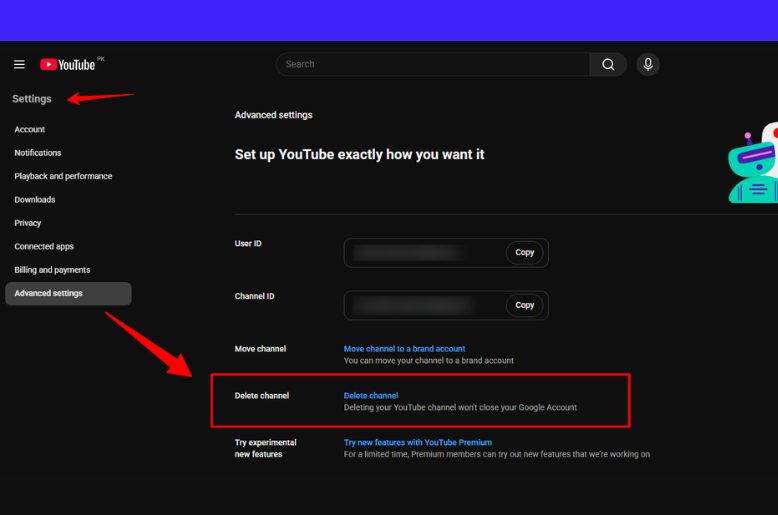
According to Google, after doing all of that you may be asked again for your login credentials prior to your account being deleted, and permanently deleting your channel will cause deletion of all associated content including all videos, comments, messages, playlists and viewing history as well.
Important Note
If you are linked to a Brand Account you may have to switch to the correct channel/account prior to managing it; this is relevant if you have more than one channel under the same Google sign-in.
How Can You Delete Your YouTube Account On Mobile
This is where many people get confused. According to the help page from Google, you cannot delete a channel on mobile devices via the YouTube App like you can on desktop. Instead, mobile devices direct you to the Google Account Settings and the YouTube-associated service controls within that account.
The mobile process is as follows:
- Open the YouTube app.
- Tap on your photo in the corner of the YouTube App.
- Go to Google Account or Manage your Google Account.
- Tap Data & privacy.
- Search for Download or delete your data.
- Tap Delete a Google Service.
- Select YouTube.
- If the system asks for your password, enter it.
- Select the I want to delete my YouTube content option then select Delete my content option.
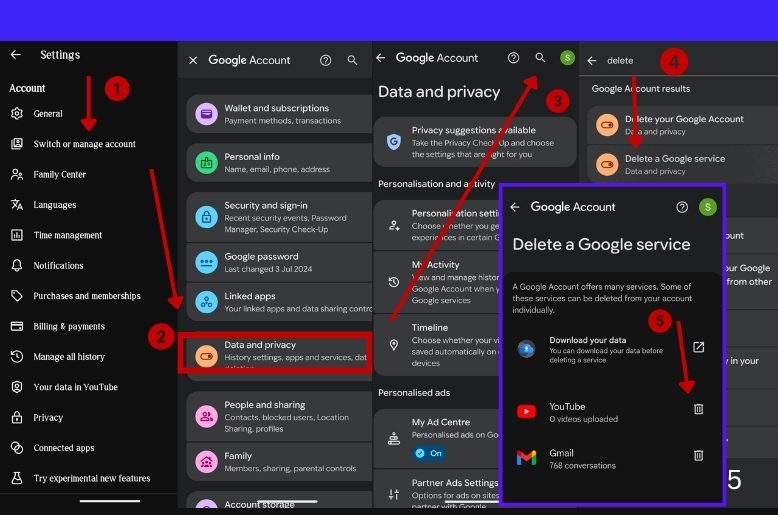
I recommend taking your time and reading through the prompts while in mobile mode because some of the language contained within the mobile prompts make it appear as though you are deleting your Google Account (everything), but you are only deleting the YouTube service or channel information associated with your Google Account.
What Happens After You Delete a YouTube Channel
If you delete your YouTube channel, all videos associated with it are deleted and cannot be recovered (as you may have guessed).
“Deleting a YouTube channel permanently removes all videos, comments, messages, play lists, and history associated with that channel”.
(Google)
Furthermore, once your channel has been deleted, Google advises you that “after deleting a channel you should no longer expect any recovery options.”
Consequently, if you delete your YouTube channel, you will lose the following:
- All uploads made to your YouTube account are gone.
- All comment and private message history is gone.
- All playlists and viewing history are gone.
- You will lose your public presence on that YouTube channel.
- However, if you delete your entire Google account, this will have an even greater impact. Google explains how deleting your Google account deletes all content associated with it, so review your information before deleting your Google account.
There is one more very practical consideration: Google indicates that recovering your account within a short period of time after it has been deleted might be possible, but that you should not rely on this as a backup plan.
Don’t Want to Delete Everything? Hide Your Channel Instead
People often search for information on hiding their channels if they’re feeling overwhelmed with YouTube, but not quite ready to permanently delete everything. The hide channel feature is designed just for this reason:
To allow users the option of hiding their entire channel and content, versus permanently removing it from YouTube.
The hiding option is great if you are:
- Looking to take a break from YouTube temporarily.
- Unsure whether or not you want to delete your channel.
- Wanting to be able to see your public channel available to others, but not right now.
Hiding your channel is a great starting point for many creators. It’s like placing your channel in a storage container rather than disposing of the item in the trash.
How To Delete Your YouTube Account Without A Password
A frequently asked question is whether you can delete a YouTube account without a password. The answer is that you typically need access to the Google Account associated with the channel to delete it.
Google has implemented an official deletion flow that requires you to log in to delete an account, as information provided on the help pages indicates as well that you may need to enter a password while in the process.
If you are unable to properly log into your account, your first step would be to recover your account. Therefore, this sequence of events would be as follows:
- Attempt to log in
- If the password was forgotten, utilize the Google Account Recovery link
- Once you have gained access, you can delete your YouTube Account or Google Service
You should utilize as many as possible from all of the recovery strategies suggested by Google when attempting to access your account, whether it is utilizing a recognizable device, browser, or most recent password you remember.
In conclusion, to delete a YouTube account without a password, you must first recover the account. In most cases, you will not be directed to the recovery option first rather than the deleted option.
In other words, you are usually required to have access to an account to delete the channel from said account.
Making The Right Choice
The best way to find what you’re looking for is to do the mental exercise below:
- If you want only to leave YouTube, then delete your YouTube channel.
- If you want to keep YouTube for later use (because you want to do more with YouTube), then hide your YouTube channel.
- If you want everything associated with your Google account deleted, then you can delete your Google Account.
Google has its own Links to the YouTube Customer Support pages with information that supports all three pathways above.
More than anything else, once the difference between an account and a channel is clear, all confusion related to the subject will be gone.
FAQs
Q. Can I delete YouTube and keep Gmail?
Absolutely. The Google Customer Service links provide detailed instructions for how to remove your Youtube account using either the Youtube Service or your Youtube Channel Settings, without needing to delete your entire Google Account. Deleting your Google Account entails removal of all services associated with your Google account, including your GMail.
Q. Can I restore a deleted YouTube channel?
According to Google, deletion is irreversible and after deletion the possibility of recovering becomes increasingly more difficult. However, if you merely hide your channel, then it can be unhidden later on down the road.
Q. Can I delete my YouTube account from the app?
Google states that you cannot delete a channel on a mobile device directly as you can on a desktop. The mobile path instead takes you to the Google Account settings and Services page for YouTube.
Q. What if I forgot my password?
You need to use Google’s account recovery flow first, so Google suggests that you go to the account recovery screen and try to answer as many questions as possible and when you are attempting to sign in again, use a familiar device and location.
Final Takeaway
If you were looking for how to delete your YouTube account, the cleanest answer is to delete your YouTube channel instead of deleting your entire Google Account, unless you want all of your Google services removed as well. Currently Google is providing a delete or hide (your videos) option using YouTube Studio on a desktop computer, and if you are trying to delete your YouTube Account through a mobile device, the mobile device directs you through the Google Account settings page. If you cannot log in you must recover your Google Account first.
That would be the only answer I would trust if I was sitting next to someone trying to do this for the first time. Clear. Simple. Short and sweet.
Additional Resources
- Google Account Help, Remove your entire Google Account:
Great if you want to delete your entire Google Account, not just YouTube. - Google Account Help, Recover your Google Account or Gmail:
Official recovery account process, if you forgot your password or are unable.