I tried to connect my laptop to my Roku for movie night with my family, but the app wouldn’t find the device. I spent about ten frustrating minutes before I realized I just needed to find my Roku’s IP address.
If you’ve been experiencing buffering videos, configuring smart home routines, or troubleshooting issues with your Roku app, you’re in the right place.
Find your IP address and read on to discover backup options if everything else fails.
Need Your Roku IP Address? Follow These 4 Steps
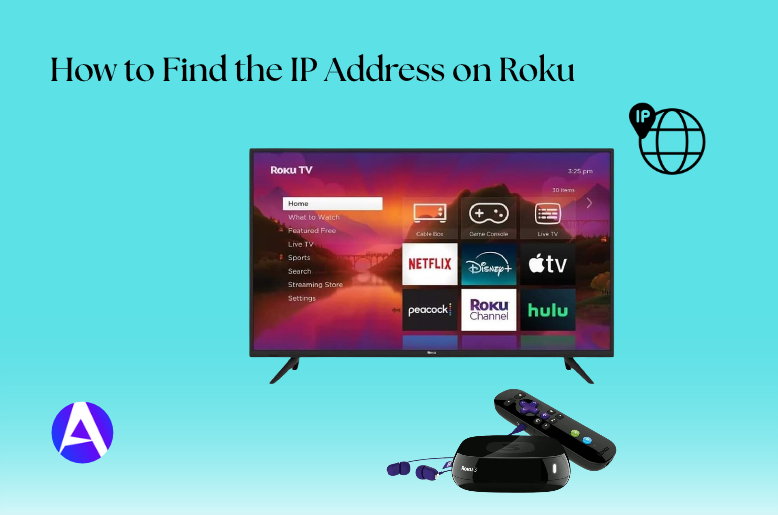
Use your remote to see the steps:
- Hit Home (it’s the tiny house icon).
- Tap Settings.
- Pick the Network option.
- Select About.
You can see your Roku IP address here next to the name of the device.
Why You Need Your Roku’s IP Address
IP addresses sound like a networking nerd problem, but regular streamers run into them constantly. Here’s when yours actually matters:
| Situation | Why the IP address helps |
| Troubleshooting connectivity | Spot network conflicts when your stream buffers or disconnects |
| Setting up a VPN | Tells your router which device’s traffic to redirect |
| Controlling Roku with the mobile app | Lets you connect manually when auto-discovery fails |
| Smart home integration | Links your Roku to Alexa or Google Assistant |
| Network management (QoS) | Lets your router prioritize Roku traffic for smoother streaming |
Think of it like a street address: your router can’t deliver data to your Roku efficiently without knowing exactly where to send it.
How to Find the IP Address on Roku TV
If you own a Roku Smart TV instead of a separate Roku device, you don’t need to worry; the remote method for figuring out your IP address is the same.
Follow these instructions:
Home → Settings → Network → About.
You can see your Roku Smart TV’s IP address under the “About” section along with other network information. Easy.
Locate the IP Address on Your Roku Streaming Device
Regardless of whether it’s a Streaming Stick, Express, or Ultra, the steps remain the same:
- Ensure that the device is connected to a power source and has a Wi-Fi connection.
- Press the Home button on the remote.
- Navigate to Settings > Network > About.
- Take note of the IP address displayed on the screen.
This reliability throughout Roku’s products is a blessing since you only need to figure out how to do this once, and it can be applied to all of your devices.
Find Your Roku IP Address Without a Remote
Did you lose your remote behind the couch? Running into dead batteries when watching TV? Did your toddler mistakenly chew the remote? So, how do you find out how to locate your TV’s IP address without a remote?
If your remote is not responding or will not reconnect to your Roku device, follow this guide to pair or reconnect your Roku remote before trying the mobile app method.
Option 1: You can try using the Roku Mobile Application
Roku Mobile App is a functional remote that has the ability to detect all Roku gadgets that are connected to Wi-Fi and find out their details, including the IP address.
To connect your smartphone with the Roku Mobile App, follow the steps below:
- Check if your smartphone or tablet is connected to the same Wi-Fi network that your Roku is using.
- Launch the Roku Mobile application on your phone.
- Click on the Devices icon appearing on your phone screen.
- Select the appropriate Roku device.
- Click on the button with three dots next to the name of your Roku device.
- Choose the option ‘View system info’ to find out the IP address, MAC address, and model.
This method is faster than using a remote control.
Option 2: Review the Router Admin Panel
No app or remote? Your router registers every device that connects to its network.
Open your preferred browser and type in the router’s IP address (usually it is 192.168.1.1 or 192.168.0.1).
- Access the router with your credentials.
- Search for Connected Devices or Device List/DHCP Clients.
Look for the entry listed as Roku. Cannot find it? Try to identify it based on its MAC address (Make sure to write it down first once you have access to your Roku..
Option 3: Use a Browser extension such as Remoku
A free browser add-on called Remoku helps in finding Roku devices on your local network.
Search for Remoku on the Chrome Web Store and add it to your Chrome browser.
- Open the extension, click Allow Data Storage, then Settings.
- Select Find My Roku and click Scan.
- Wait a minute or two until the scan is finished.
Once the scan is done, the IP address of the Roku, along with any other Roku device connected to the network, will be displayed.
Can’t Find Your Roku IP Address? Try These Fixes
If you have tried everything mentioned above but are still experiencing difficulties, here are some of the reasons causing them:
- Make sure your devices are using the same connections: Some models of dual-band routers assign separate network names to their 2.4GHz and 5GHz bands, and thus, you should check that both your Roku and your phone are using the same names.
- Try restarting all devices: You can do this by briefly turning off your Roku, your router, and your mobile phone.
- Disable Guest Mode and AP Isolation: Such functions prevent devices from seeing each other on the local network.
Make sure that your phone’s VPN is disabled because a VPN can block local device discovery.
Enable mobile application control.
Protect Your Roku IP Address: A Quick Privacy Check
Advertisers and streaming services may use your IP address as a way of gathering information about your viewing activities on all the devices that you use, not just Roku.
In just a few minutes, you can secure your private information:
- Settings > Privacy > Advertising and check the box to prohibit ad tracking.
- If you have a Roku TV, disable Smart TV Experience under Settings > Privacy to prevent tracking on various devices.
You can also use a VPN installed on your router since Roku does not have any VPN apps available to hide your IP address from data gatherers.
An IP address can also reveal an approximate location. For a broader explanation, see our guide to how IP addresses can reveal approximate location.
Frequently Asked Questions
Q. Is it possible for me to locate the IP address of my Roku without the remote or the app?
You will need to log in to your router’s administration panel and check Connected Devices or the DHCP Client list for anything labeled as Roku.
It is usually faster to just install the Roku app on your available phone.
Q. What step should I follow if I want to connect the Roku remote app to my Roku device but an error pops up?
To fix this issue, confirm that both your Roku and phone are connected to the same Wi-Fi network, make sure that there are no active VPN settings on the phone, and restart both the phone and Roku.
Q. What should I do if my Roku has a public IP address instead of a private IP address?
It generally means that either your ISP or your router has not been configured properly. Contact your ISP or check the WAN/LAN settings in the router.
Final Thoughts
Getting the Roku IP address is generally an easy task. You can follow Home → Settings → Network → About on your Roku set or Roku TV to display its IP address and network information.
Even if you do not have the remote control with you, you can refer to other methods, like using mobile applications or the connected device list from your router. After getting the IP address.
You may use it for troubleshooting network issues, connecting devices, and carrying out other operations associated with your Roku. In essence, make sure that the Roku device and your device used for looking up the IP are on the same network.