
You probably don’t want to read a lot of information and simply want to fix the problem quickly. There are many reasons why someone would need to factory reset their Chromebooks; they could be having lagging, freezing, odd error messages, or they could be getting rid of it (selling, returning, giving away).
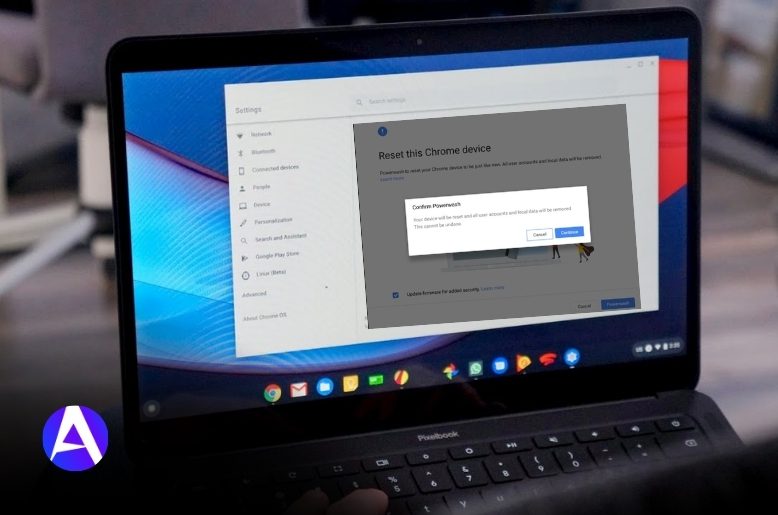
Factory resetting a Chromebook is called Powerwashing. This will delete all locally stored data on the Chromebook and return back to its “out of the box” state. The good thing is that if your data is saved in the cloud (e.g., Google Drive, Gmail, Google Photos, etc.), that data remains intact. The bad news is that if you save data locally on the Chromebook itself, that will be deleted as a result of this reset.
This article outlines how to factory reset Chromebook using three methods, including a keyboard shortcut, using the Chrome OS settings menu, and using the Chrome OS login screen. Also detailed are the items that will be deleted, will be maintained, and things to try prior to attempting to reset your Chromebook.
Quick Answer:
Here is the short and quick overview of how to factory reset your Chromebook:
- Sign out of your Chromebook.
- Press Ctrl + Alt + Shift + R together at the same time.
- Select Restart > Powerwash.
- Continue through the “Set Up Your Chromebook” prompt to log back into your Google Account.
While this is the fastest way to resetting your Chromebook there may be reasons why knowing what a Powerwash does would be useful.
What Happens When You Powerwash a Chromebook?
A Chromebook factory reset removes:
- All local user accounts
- All user settings/preferences
- All installed apps
- Any files saved to the device’s Downloads folder
- Any offline saved files
- Any Linux container data (if you have Linux enabled)
- Any other local files on the Chromebook
It does not remove:
- Any files you’ve saved to your Google Drive
- Any emails you’ve received or sent from your Gmail Any photos in your Google Photos account
- Any bookmarks, saved passwords, or extensions associated with your Google account
Because Chromebooks store most of their data in the cloud, in general, this information will be safe unless you delete it from your account after it has been synced with the Chromebook.
Back Up Your Files Before Resetting
Make certain that you have copies of all your important data prior to performing a factory reset of your Chromebook
If you have access to any and all of the following:
- Files stored in your Downloads folder
- Linux files
- Offline Documents
- App images that don’t sync automatically
- Any important local documents
You should back these up by sending them either to Google Drive or to an external USB hard drive.
Before performing the factory reset, please ensure you know the password for your Google account and have access to any form of two-factor authentication.
Try These Fixes Before a Factory Reset
A factory reset is powerful, but it should usually be your last option.
1. Disable Chrome Extensions
Some extensions can slow down ChromeOS or cause unusual behavior.
Open Chrome and enter:
chrome://extensions
Disable extensions one by one and see whether the problem disappears.
2. Perform a Hardware Reset
A hardware reset will not delete any files on your computer.
To perform this process:
- Turn your Chromebook off.
- Press and hold the refresh button.
- Press the power button.
- Let go of the refresh button after the screen turns on.
This reboot should often clear any temporary hardware malfunctions you may have.
3. Run Chromebook Diagnostics
Open the Launcher and search for Diagnostics.
Run tests for:
- CPU
- Memory
- Battery
If diagnostics reveal hardware problems, a factory reset may not solve the issue.
If your Chromebook issue is limited to touch input rather than the entire system, read our guide on how to disable touchscreen on Chromebook before performing a Powerwash.
Method 1: Factory Reset Chromebook From Settings
If you can access the desktop, this is the easiest method.
Key Steps:
- Sign into the Chromebook.
- Click on the computer’s date (bottom right).
- Go to the settings menu.
- Scroll to “Advanced” or “System Preferences.”
- Look for the “Powerwash” option.
- Click “Reset.”
- Choose Restart.
- Select “Powerwash.”
When prompted, click “Continue” and follow further instructions.
Method 2: Factory Reset Chromebook From the Login Screen
If you cannot sign in, use this method.
Key Steps:
- Go to the sign-in screen.
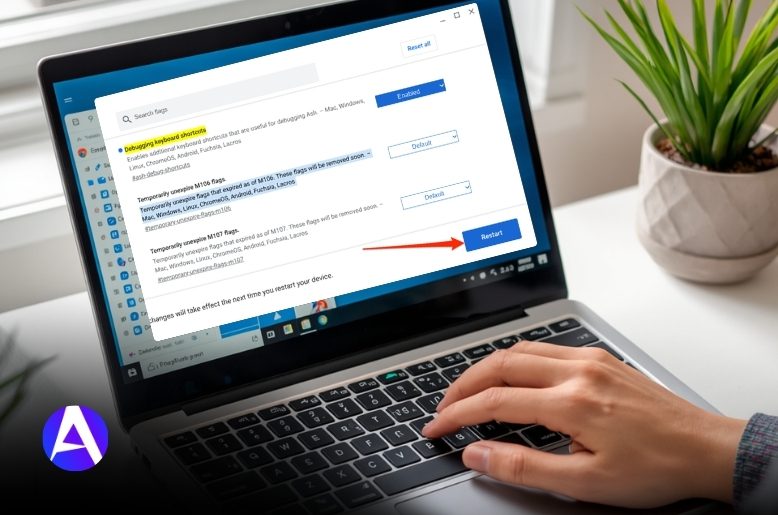
- Press (Ctrl + Alt + Shift + R).
- Select (Restart).
- Click on (Powerwash).
- Click on (Continue).
- Follow the setup process.
This method will work if you are unable to access the Chrome OS desktop.
How to Factory Reset Chromebook Without a Password
If you forgot your password, use the login screen shortcut:
Ctrl + Alt + Shift + R
You do not need to access Settings first.
However, if the Chromebook belongs to a school or workplace, administrator restrictions may prevent a full reset or require re-enrollment afterward.
How Long Does a Chromebook Factory Reset Take?
In most cases:
- Powerwash process: 2–10 minutes
- Setup after reset: 5–15 minutes
The exact time depends on your internet connection and how much data needs to sync back.
After the reset, you may need to:
- Connect to Wi-Fi
- Sign in to your Google Account
- Restore settings
- Reinstall apps
- Wait for syncing to finish
Factory Reset vs Hard Reset
A factory reset (Powerwash) and a hard reset are not the same.
- Factory Reset / Powerwash: Deletes local files, accounts, settings, and apps.
- Hard Reset: Refreshes Chromebook hardware and system components without deleting your data.
If you want a clean start or are preparing the device for a new owner, use Powerwash. If the Chromebook is simply frozen or unresponsive, try a hard reset first.
What If Powerwash Does Not Fix the Problem?
If, even after performing a factory reset, you’re still experiencing issues with your Chromebook, you may have an issue with either the physical hardware of your device or the software (ChromeOS) itself.
To resolve any issues related to either of those, we recommend using ChromeOS Recovery which will reinstall the Chrome operating system onto your computer. If there are still issues present after doing this, then you will likely require a trip to an authorized repair center for a hardware repair.
When Should You Factory Reset a Chromebook?
When to do a factory reset:
The Chromebook is performing poorly; it frequently hangs or crashes; you have had problems logging in; you want to sell / give away your Chromebook; you want to remove all of your personal information from the device; and there are software compatibility problems.
For many people, the Powerwash setting is the quickest way to start over and fix long-standing software issues.
Troubleshooting Powerwash Problems
Here are some things to check if Powerwashing your device won’t work.
- Is your Chromebook fully charged?
- Are you using the keyboard shortcut correctly?
- Have you thought about resetting through Settings?
- Is your Chromebook controlled by an organization?
- Can you try and use Recovery Mode to see if the Chromebook will boot again?
Should none of these options work, you may experience hardware failure.
FAQs
Q. Does Powerwash delete everything?
When you do a Powerwash on your Chromebook it deletes local files, user accounts, settings, and app data stored on the Chromebook, but anything stored in the cloud will remain safe.
Q. Can I factory reset a school Chromebook?
Most of the time no; Most devices must get signed off on by the administrator before resetting, and managed devices usually require to be re-enrolled after a reset.
Q. Can I factory reset without logging in?
Yes; You can use Ctrl + Alt + Shift and R at the login screen.
Q. How long does a Chromebook reset take?
A Chromebook reset usually takes between two and ten minutes to complete and between five and fifteen minutes to set up afterwards.
Q. Will my Google Account be deleted?
No, your Google account is not deleted as a result of resetting your Chromebook.
Q. What happens to bookmarks and passwords?
As long as you have Chrome Sync turned on, they will return when you log back in.
Q. Is a hard reset the same as a factory reset?
No. A hard reset corrects temporary problems, and a factory reset deletes all data on your hard drive and puts it back to its original factory settings.
Final Thoughts
Knowing how to reset your Chromebook (power wash) is a good way to fix performance or other problems quickly and without hassle. If you need to clear your personal info off of a Chromebook before selling, or if you want to get a fresh start, a powerwash is an easy and effective method.
Remember to make a back-up of any important local files and to have access to your Google account before performing the factory reset. Factory resetting a Chromebook will usually be quick and easy and is usually the easiest way to resolve long-lasting software issues.
Additional Resources
Here are a few reliable places to learn more about Chromebook resets and related troubleshooting topics:
- Google Chromebook Help: Official guidance for Powerwash, recovery, and device setup.
- Google Account Help: Useful for Chrome Sync, backups, and account recovery.
- ChromeOS Recovery Help: Helpful if a Powerwash does not solve the issue and you need to reinstall ChromeOS.