
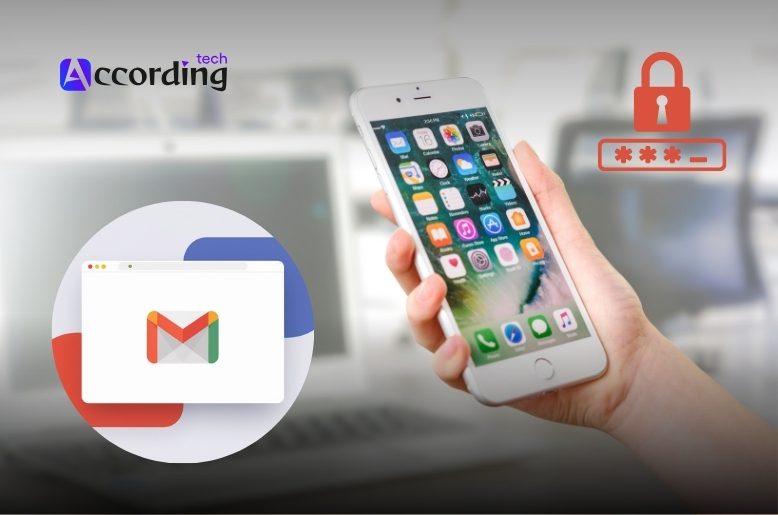
Follow this guide to change your Gmail password on iPhone in simple steps and keep your account safe, up to date, and secure today.
Changing your Gmail password on iPhone takes only a few minutes. You have the option of changing the password through the Gmail app or Google Account on Safari. In this guide, we will walk you through both methods step by step.
Quick Answer
- To change your Gmail password on iPhone:
- Launch the Gmail app
- Select your profile picture at the top right
- Select Manage your Google Account
- Select Personal info
- Then select Password
- Input your new password
- Tap Next to save your new password.
Alternatively, you may visit the Google Account on Safari to change your password.
How to Change Your Gmail Password on iPhone
Using the Gmail App
This method is the easiest for the majority of iPhone users.
Steps:
Begin by opening the Gmail app on your iPhone
- Tap your profile icon in the top right corner of the screen
- Tap the option that says “Manage your Google Account, “ choose the option “Personal info.”
- Tap “Password” after scrolling down. If prompted, confirm your identity
- Type in your desired new password
- Next, tap to finish
Now, your password for all Google services, including Gmail, will be updated.
Without the Gmail App
If the Gmail app isn’t your thing, you can update your password by using Safari or any other web browser.
Steps:
- Launch Safari on your iPhone.
- Go to settings for Google Account.
- Log in to your Gmail app.
- Click Security.
- In the Signing into Google section, click Password.
- Type in a new password.
- Click Next to save the edit.
If you use Gmail on Apple Mail or preferred web browsers, this method is convenient.
What Happens After Changing Your Gmail Password?
After you change your password:
- Google may sign you out from other devices
- You may need to sign in again on apps using Gmail
- Apple Mail may ask for the updated password
- Older app passwords may stop working
This is a normal security measure designed to protect your account.
Do You Need to Update Apple Mail Too?
If you access Gmail through the iPhone Mail application, you might have to reestablish the account connection after you update your password.
Verify Your Mail Settings
- Open the Settings application on the iPhone.
- Access Apps → Mail → Mail Accounts.
- Pick your Gmail account.
- Re-enter your credentials if prompted.
Apple controls the email accounts in this area.
What If You Forgot Your Gmail Password?
You can visit the Google recovery page if you forget your password.
Recovery Steps
- Go to Google Account Recovery.
- Type in your Gmail.
- Go through the verification steps.
- Pick a new password.
The recovery code will be sent to your recovery email or phone number.
Tips for Creating a Strong Password
Creating a new password?
- Choose 12 characters at a minimum
- Incorporate uppercase letters as well as lowercase
- Include both numbers and symbols
- Stay away from easily guessable words or personal details
- Old passwords must not be repeated
To account security a strong password is very beneficial.
Troubleshooting Gmail Syncing Issues
If Gmail isn’t syncing after a password update, it might be due to a few common issues.
Double-Check the Account
Many users have multiple Gmail accounts. Before troubleshooting, double-check that you are trying to update the password for the correct account.
Fix Syncing Problems
If you’ve confirmed you’re in the right account, try these steps:
- Close and reopen the Gmail app.
- Sign out of your account and then sign back in.
- Review your Mail account settings to ensure they are correct.
- Check your internet connection.
FAQs
Q. Can I change my Gmail password from iPhone Settings?
No. You need to access the Google Account to change the Gmail password. You can’t change it from the settings on your iPhone.
Q. Will changing my Gmail password sign me out everywhere?
For security reasons, Google might sign you out of the apps on other devices.
Q. Can I still use Apple Mail after changing my password?
Yes. You will be able to access your Apple Mail. You will need to enter your new password to do so
Q. Is the Gmail app safe on iPhone?
Yes. Gmail created the official email app for iPad and iPhone.
Final Thoughts
The easiest way to update your Gmail password on an iPhone is to do it directly through the Gmail app or through your Google Account on Safari. The process keeps your account secure and takes only a few minutes. For Apple Mail users, be sure to check your Mail settings after the process is complete to verify everything is still syncing correctly.