
Pairing AirPods is one of the simplest tasks using your Chromebook’s Bluetooth connectivity. Wondering how to pair AirPods to Chromebook? No need to worry about it, you can simply connect them directly without needing any third-party apps, adapters, or complicated software setups.
Apple’s official Discord and Google’s Chromebook Support say that, technically AirPods can work with non-Apple products that can use Bluetooth to listen to audio. Pairing AirPods with Chromebook is as simple as going to the settings and finding AirPods. It should only take your Chromebook a few seconds to search for your AirPods once they’re in pairing mode.
It can be a little confusing the first time you connect your AirPods, especially if they don’t show up immediately, but don’t worry. This is relatively normal as that means the AirPods are not in pairing mode. Once the AirPods are in pairing mode, it tends to be a pretty fast and simple process.
Quick Answer
The AirPods and Chromebook do connect wirelessly using Bluetooth to pair. Place the AirPods in their charging case, open the case, and press and hold the button on the case until it starts to flash a white light, then go to the Bluetooth settings on the Chromebook and find the AirPods in the list of available devices.
How To Pair AirPods To A Chromebook
1. Put Your AirPods Into Pairing Mode
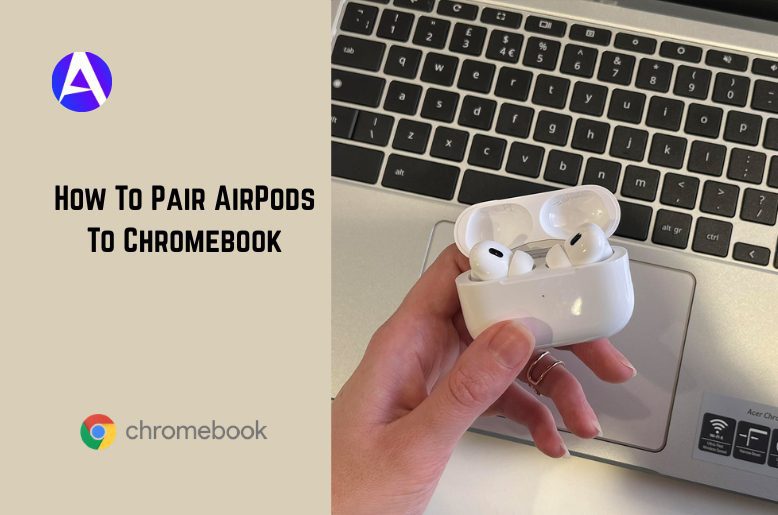
Place both AirPods inside the charging case and open the lid. On the back of the case, press and hold the setup button until the status light begins flashing white.
The flashing white light means the AirPods are discoverable and ready to connect to nearby Bluetooth devices.
2. Open Bluetooth Settings On Your Chromebook
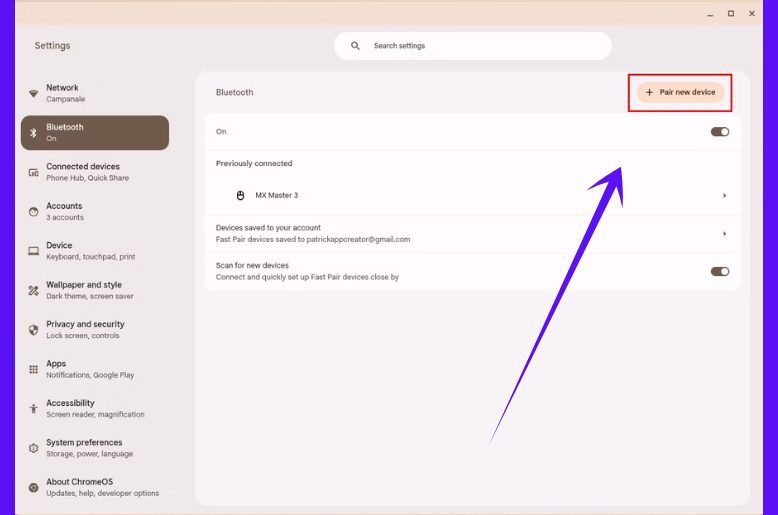
On your Chromebook, click the time section in the bottom-right corner of the screen. Open Settings, then go to Bluetooth.This is where ChromeOS manages wireless devices such as headphones, speakers, keyboards, and earbuds.
3. Turn Bluetooth On
Make sure your Bluetooth is activated. Without Bluetooth, your Chromebook won’t identify your AirPods.
As soon as Bluetooth is enabled, your Chromebook looks for other nearby gadgets.
A few seconds after, your AirPods will show up under nearby Bluetooth devices. To pair, click on AirPods.
The pairing usually only takes a moment.
4. Select Your AirPods From The Device List
After a few Secs your AirPods should be visible under the available Bluetooth devices. To pair them, click their name.
It normally takes just a few seconds to connect.
5. Confirm the Connection
If prompted, accept the pair request on your Chromebook. After the successful pairing, your AirPods will operate like any other wireless headphones for listening to music, YouTube, and other audio during Zoom calls, online classes, and movies.
While AirPods are compatible with Chromebooks, some Apple-exclusive features such as Siri and Apple devices switching on their own are not available.
Want Apple messaging across devices too? Here’s a quick guide on how to enable iMessage properly.
How to Connect AirPods to Chromebook Wirelessly
An actual and efficient way about how to connect AirPods to Chromebook, is a standard Bluetooth pairing. It is very simple and requires no special setup or wires.
Your AirPods will automatically reconnect to your Chromebook whenever Bluetooth is turned on and your AirPods are nearby. They are great for students, remote workers, or any other person who frequently moves from one activity to another like switching between classes or meetings, and listening to videos or music along the way.
The main benefit after the first setup is the ease of connection. It usually only takes a handful of seconds to reconnect to your Chromebook.
Can You Pair AirPods to a Chromebook Without the Button?
Connecting AirPods to a different device requires you to push a button. This button allows other devices to discover your AirPods and puts them in pairing mode.
If your AirPods are already linked to that Chromebook, you probably won’t need to push the button. All you have to do is select them from the Bluetooth options on the Chromebook.
Restarting the pairing process will probably solve your connection problems.
Troubleshooting: AirPods Not Connecting to Chromebook
Not all connections are successful on the first try. Most of these issues come down to small discrepancies with Bluetooth or pairing issues. These can usually be fixed in a couple of minutes.
AirPods Are Not Showing Up
Ensure the AirPods are in pairing mode. The light in the AirPods case must be flashing white. If the light is not flashing, press and hold the button again until it does.
During setup, the AirPods case should be as close to the Chromebook as possible.
Bluetooth Is Not Working On Chromebook
From the Settings app, you can reset Bluetooth by toggling it off and on. This refreshes the wireless connection and often resolves temporary issues.
If the issue persists, perform a full restart of the Chromebook and then try to pair again.
AirPods Connect But There Is No Sound
Make sure to check the volume on the Chromebook. Double-check the selection of the AirPods among the active output devices.
Also, check if audio plays correctly once the AirPods are reconnected. If it still fails, then completely disconnect the AirPods via the Bluetooth settings and reconnect.
AirPods Were Working Before But Stopped Connecting
Make sure to check the volume on the Chromebook. Double-check the selection of the AirPods among the active output devices.
Also, check if audio plays correctly once the AirPods are reconnected. If it still fails, then completely disconnect the AirPods via the Bluetooth settings and reconnect.
Best Practices for A Smooth Connection
Here are a few tips that make pairing reliable and easy:
- Place the AirPods charging case near the Chromebook during setup
- Enable Bluetooth prior to pairing
- It’s suggested to wait until the AirPods case has the white flashing light before searching for devices
- Charge the AirPods and the Chromebook before use
- Reconnect from the Bluetooth settings rather than repeating the setup from start to finish
These tips will help with most pairing problems.
Why AirPods Work Well With Chromebooks
Chromebooks and AirPods are a match made in heaven. The setup is super easy, and AirPods provide excellent lag-free audio. Once hooked up, streaming, attending online classes, work Zoom calls, gaming, and listening to music online all work great.
For students and remote employees, being able to wirelessly connect provides a lot of benefits for long work sessions. AirPods eliminate the hassle of dealing with wires, allowing the user to freely switch between tasks and improvise a bit.
AirPods are made by Apple, so people expect them to work better with Apple products. However, AirPods work great as basic Bluetooth earbuds with ChromeOS too.
If you also use ChromeOS or Linux devices, check out our guide to the best Linux distro for laptops for better performance and productivity.
FAQs
Q. Do AirPods work with Chromebooks?
Yes. AirPods sync with Chromebooks through Bluetooth, like any other wireless headphones or earbuds
Q. Do I need an app to connect AirPods to a Chromebook?
No. There is no app that you will need to download to connect AirPods to your Chromebook. You connect AirPods to your Chromebook from the built in Bluetooth settings.
Q. Can I use AirPods for Zoom or Google Meet on Chromebook?
Yes, AirPods can function as audio and mic input options on Zoom, Google Meet, and any other video conferencing apps, as long as they are connected.
Q. Why won’t my Chromebook find my AirPods?
This can happen when the AirPods are not in pairing mode. Ensure that the case light is blinking white and that Bluetooth is enabled on the Chromebook.
Q. Do AirPods reconnect automatically to Chromebook?
Usually, yes. Chromebooks can automatically reconnect to previously paired AirPods as long as Bluetooth is enabled after the first successful pairing.
Q. Can AirPods Pro connect to Chromebook?
Definitely. Chromebooks connect to AirPods Pro with Bluetooth just like any other AirPods.
Conclusion
Most people are surprised by just how simple it can be to learn how to connect AirPods to a Chromebook. All that is typically involved is activating Bluetooth, putting the AirPods in pairing mode, and locating them on the list of devices on the Chromebook.
AirPods can be utilized to listen to music, participate in online meetings, and watch streams and classes, all without the hassle of wires or supplementary software. Usually, if the connection fails to activate, the issue can be resolved by restarting the connection, checking the Bluetooth settings, or doing the full pairing process again.
The first time you set it up, and afterwards, it takes virtually no time at all to reconnect them. This makes it very easy to use AirPods with a Chromebook regularly.