Several years back, I awoke to the realization that someone I didn’t know had come across my half-asleep raving about the daily journey. To make things worse, this person responded using my full name and the name of my company.
Nothing bad really happened, yet my stomach turned. For the next ten minutes, I frantically searched for the way to set my X account to private. I found that option, and you will not have to do the same. In a few simple steps that will take you no longer than five minutes, you’re going to find out how to protect your posts.
To put it simply, you need to go to Settings and privacy → Privacy and safety → Audience and tagging and set the Protect your posts option to On. Your existing followers will have their access preserved, and your profile will still be publicly visible.
Learn how to make your X account private in minutes with easy steps for iPhone, Android, and desktop to protect your posts and privacy.
Quick Steps to Make Your X Account Private
Don’t have time? Follow these four steps.
- First, open the menu. On your mobile, you can tap on your profile picture, while on desktop you can click on More.
- Second, choose Settings and privacy.
- Third, click on Privacy and safety, followed by Audience and tagging.
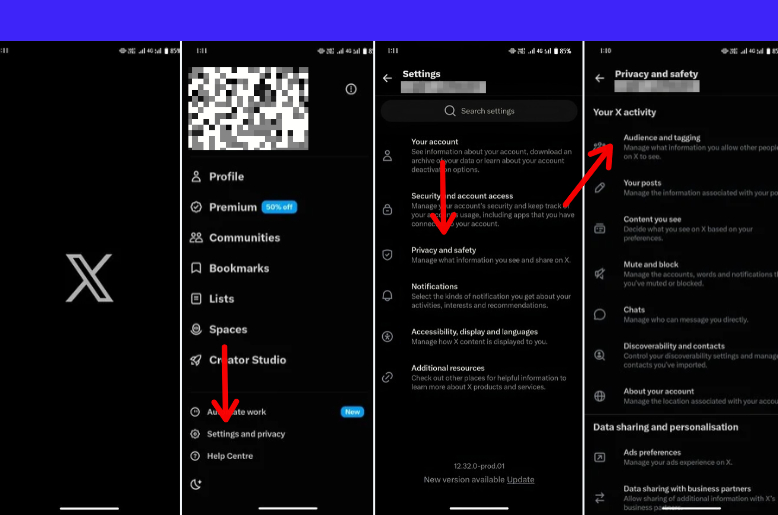
Finally, enable Protect your posts. Note that the wording of the menu can change in different versions of the app, but the last three steps have the same names regardless of the platform.
Here’s a useful tip:
Before you start, check which account you’re using. If, like me, you have both a personal and a work account, you might enable protection for the wrong one.
How To Make Your X Account Private On iPhone
The mobile process is quite short and is completed in less than one minute. Below is an overview of how to make an X account private on iPhone.
- Firstly, launch the application and tap the profile photo in the top menu.
- Secondly, tap Settings and privacy, and then choose Privacy and safety.
- In the next step, open Audience and tagging.
- Then, there is a need to move the slider next to Protect your posts to the on position.
- Close the settings window and return to the Audience and tagging screen to confirm that the slider has indeed remained in the on position.
Although the last check may seem a bit unusual, it takes little to complete and helps avoid a lot of doubts.
How To Make X Account Private On Android
Are you curious about changing your X account to private on Android? The process is pretty much the same:
- First, launch the X app. Then select your profile image or the menu icon.
- Select Settings and privacy. Next, proceed to Privacy and safety.
- Choose Audience and tagging.
- Tick the box that says “Protect your posts”.
Go back and verify that the box is still ticked before going back to the screen again. While the Android option uses a tick box, the Apple device works with a slider. Older resources used to name this feature as ” Protect your tweets.
What Happens When You Make Your X Account Private?
Think of protecting your posts as locking your front door. You control who walks in and reads your shelves. You don’t recall the photocopies you already handed out.
What changes :
- New followers must send a request, and you approve or deny each one.
- Only your followers can see your posts and their permanent links.
- Followers can’t repost or quote your posts.
- Your posts stop appearing in Google and other search engines.
- X search shows your posts only to you and your followers.
- People who don’t follow you can’t see your replies to them.
That last point catches people off guard. If you reply to a stranger from a protected account, they never see your answer. I learned this the awkward way while answering a reader’s question. It felt like talking into a dead microphone.
What doesn’t change
- Existing followers keep access unless you block them.
- Anyone who already had a post on their Home timeline may still see it.
- Followers can still screenshot and share your posts.
- Connected third-party apps may still read your protected posts.
- Anyone with a t.co or media link can still open it.
- Copies on other websites stay put, because X can’t remove them.
Your profile stays visible, too. Protection covers your posts, not your bio, display name, username, or profile photo. If your bio reveals more than you want a stranger to read, edit it separately.
Can People See Your Posts on a Private X Account?
This is the question I’m asked most often, so let’s break it down group by group.
Strangers and non-followers:
The answer is NO. They cannot see your posts on the site, and your posts will not be publicly shown in any X search or Google search. When your account was public, every post automatically changed status as soon as you started protecting your account.
Existing followers:
The answer is YES. Everyone who was following you at that time will be able to see your posts,t and X won’t ask them to re-follow you. I think of protection as a means of blocking new followers, but not of taking the old ones off the list. To remove someone, you have to block the user.
Someone who already saw the post:
Maybe a follower who saw the post on the feed may still see it. However, they can’t interact with it or view its details.
Someone outside of X:
Nothing disappears from the world. All screenshots and saves remain accessible. In case you want to get rid of old Google results, use the tools that Google provides instead of protecting your account all over again.
Another issue arises when links are involved. The link in a protected post becomes a t.co link, and anyone with it can access the destination easily. If you have shared an open document, you may need to change its setting, too. In other words, even though your audience is set in X, it may not prevent anyone from accessing a public file.
Accepting follower requests is easy. The incoming requests can be found under the Follower requests section. Mobile users simply need to tap their profile photo. Web users should go to the More menu. The requests can be approved by clicking the tick sign or the Accept button, and denied by clicking the X or the Decline button.
I accept requests from people I know personally or from those I can justify. Just because a person has a good-looking avatar doesn’t mean they are a worthy person to be accepted into your circle.
Fixes for X Account Privacy Settings That Aren’t Working
Most “it’s not working” situations usually turn out to be something else instead. Here’s how I troubleshoot every one of them.
You cannot find the settings. Check your app against the online path outlined above. If you need to contact X support, pay attention to the specific menu name you see.
Your publications still seem to be public.
Use another account that does not follow you to see if the posts are available. Your own view or that of a follower is not necessarily the real one, so it is possible that the security policy is correctly applied.
Next, check if the person has already followed you. Do not confuse the original post with a screenshot of the old search result. You cannot view requests for following.
It may be that you have nothing to see since the notification appears when the requests are zero. Someone could cancel the request before you saw it, or your account may still be public. Check the settings and request list to be sure.
Your posts were never public but still appear in search.
X recommends changing your account passwords, revoking all connected apps that you cannot trust, and filing a report. Be sure to mention when the attack occurred; where you started seeing the messages; and what apps you are using.
And please, do not share your logins with new services to try out their privac
The verification checklist that takes 5 minutes
- Confirm that the handle you altered is indeed the account you intended to change.
- Ensure that the Audience and tagging contain Protect your posts as enabled.
- Confirm that the account that is not following you cannot view your posts.
- Look through the followers or the requests waiting for acceptance.
- Don’t forget to separately check your bio, connected applications, and files connected to you.
Extra steps to be more careful
Having switched on protection, it is worth checking the settings:
- Protect videos: Switch it on in the Audience and tagging option to avoid downloads of the videos from your posts.
- Tagging: Switch it off so strangers would not tag you in the pictures.
Look for options to match your email and phone number so people cannot find your account through them.
Private Versus Public: Which Option Is Best For You?
Opting for a private account is a wise decision when you would like to limit the number of individuals who can follow you and to select your own audience. There is no necessity to use a metric of growth in terms of either of the alternatives.
People don’t use public profiles in the same way. Public profiles show your work to people before they make a decision about whether or not to follow.
However, some users create two accounts: one private or protected account for personal purposes and a public account for business.
It is important to think carefully before protecting an account for a conversation with clients and customers, as a protected account cannot take part in discussion.
FAQs
Q. Does making my account private mean my old tweets are safe from public view too?
Yes, previous tweets will no longer appear publicly on X and disappear from X public search. People who have read older tweets before may see those older posts in their timeline, but they are not able to interact with them. Copies exist, and screenshots made outside X remain.
Q. Will my existing followers need approval again?
No, they will retain their access unless they are blocked.
Q. Will protected posts be found on Google?
No, protected tweets do not appear in any third-party search engines. However, results from the period when the account was public may exist, so use the provided removal options.
Q. Can followers screenshot the protected tweets?
Yes, protection does not prevent a person from taking a screenshot or sharing the link.
Q. How do I change the account from public to private?
Open Settings and privacy → Privacy and safety → Audience and tagging, and turn on Protect your posts.
Q. Do old protected tweets become public once I make my account public again?
Yes, all protected tweets become public, and X won’t approve any pending requests.
Final Thoughts
The first time I learned how to make an X account private, it took me ten minutes. It should take you just five minutes. The setting locks the door for new visitors, but it doesn’t erase what already exists, nor does it kick out the people who are already inside.
All there is to it is turning it on, going through the checklist, looking at your followers, and checking it from an account where you aren’t a follower.