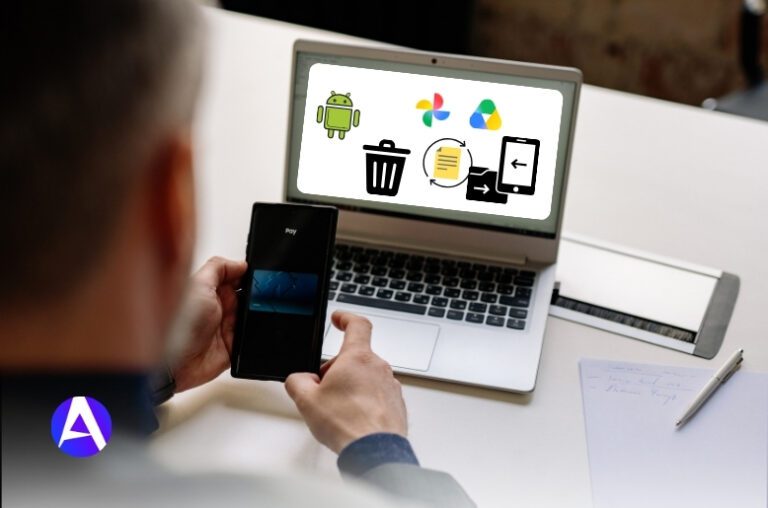

Accidentally deleting an important file can be stressful, whether it’s a family photo, work document, video, or PDF. The good news is that deleted files aren’t always gone forever. Most Android phones include built-in recovery features that temporarily store deleted files in a Trash or Recycle Bin before permanently removing them.
If you act quickly, you may be able to restore your files without installing any additional software. Even if the Trash is empty, cloud backups and data recovery tools can sometimes help recover permanently deleted files.
In this guide, you’ll learn how to restore deleted files on Android using simple, beginner-friendly methods that work on most Android devices, including Samsung Galaxy, Google Pixel, OnePlus, Xiaomi, Motorola, Oppo, Vivo, Realme, and other popular brands.
Quick Answer
If you recently deleted a file on your Android phone, check the Trash or Recycle Bin first.
Apps like Google Photos, Files by Google, Samsung Gallery, My Files, and Google Drive keep deleted files for a limited time, allowing you to restore them with just a few taps.
If the file isn’t there, you can recover it from a backup or use a trusted Android recovery tool before the deleted data is overwritten.
Where to Look First
| What to Check | Best For | |
| 1 | Files by Google → Trash | Documents, downloads, audio, any file type |
| 2 | Google Photos → Trash | Photos and videos |
| 3 | Gallery / manufacturer file manager | Brand-specific trash bins (Samsung, Xiaomi, etc.) |
| 4 | Google Drive or other cloud backup | Files synced automatically |
| 5 | Recovery software | Permanently deleted files with no backup |
Now let’s walk through each one properly.
Step 1: Stop Using the Phone
I realize that you may not be pleased to hear this advice when you are waiting to retrieve files. Nevertheless, it is vital that you do the following. The explanation is simple.
In fact, when you delete a file from your Android system, it may not be definitively erased but may only be detected as free disk space. This means your photo, document, or any other file is probably in the system’s memory until it is deleted to give room for new information.
Opening apps, taking pictures, and downloading just about anything that creates new data can remove your files for good. Imagine an empty parking area. The car in your file has exited the parking area, but a parking space remains unoccupied until another vehicle arrives.
The more you drive around a parking area, the bigger the possibility of getting someone else to occupy that parking space first. So if your file is important, stop using the phone at least for a while and continue reading without distractions.
Step 2: Recover Deleted Files from Files by Google
Start here for almost everything, not just photos, but downloads, documents, and audio files too.
- Open the Files by Google app; most Android phones already have it. It’s a free download if not.
- Tap the menu icon in the top left corner.
- Select Trash.
- Find your file, tap and hold it.
- Tap Restore.
Done. If your file shows up here, you’ve dodged the whole problem. This app is also your first stop for how to recover deleted files from Android internal storage, since it indexes storage across your entire device rather than just one app’s data.
Step 3: Recover Deleted Photos and Videos from Google Photos
When it comes to the deletion of image files or videos from Google Photos, it is important to note that it differs from Files by Google, as Google Photos has its own system.
I found out about this only after mistakenly trying to recover an image twice from the wrong app and thinking it was gone forever.
To restore your photo or video from Google Photos, follow these simple steps:
- Open Google Photos.
- Tap on your profile picture or click on the Library option.
- Select Trash, sometimes referred to as Bin.
- Locate your image/video, click on it, and wait for the selection process to complete.
- Click Restore.
It is worth mentioning that the trash keeps your images for 60 days, even though this may vary in individual cases. After this time, the service deletes images automatically.
In order to track how much time is left, one should check the screen with the list of items contained in the trash.
Where Can I Find My Deleted Files on Android?
A poignant inquiry most of us face is: how to retrieve deleted files on Android? The response depends on the app for file deletion, which leads to brand differences.
- Samsung: The Gallery App contains its own recycle bin (icon or through Trash).
- Xiaomi: The Gallery App also has similar features of a rubbish bin.
- Motorola & OnePlus: Primarily make use of the Files by Google app and Google Photos for file management, although they usually implement some form of file trash.
It’s prudent to remember these. Check the app from which you delete the deleted file, as this is usually the first source you will look for in this instance.
Step 4: Restore Files from Google Drive or Other Cloud Backups
First, check to see if you have anything in the Trash. After that, check automatic backups.
- For Google Drive: Either open the app or visit drive.google.com. Check both standard folders and the Trash section in the sidebar.
- For Samsung Cloud, Xiaomi Cloud last, or other similar services: Go to Settings → Accounts and Backup → Restore data.
- For OneDrive or DropBox: Check if your images and other files have been synced to either of them. They might be waiting in the trash.
That’s exactly how I got my dog pictures back. The Google Photos app automatically downloaded my pictures weeks before, so even if they were not in my phone’s trash, they were not deleted in the cloud.
What If the Files Were Permanently Deleted?
Let me be frank here, as most guides aren’t honest about their claims. In case a deleted file isn’t in the trash or some backup exists, then its recovery might happen, although there are no guarantees.
Let’s mention what truly works:
- Stop using the device immediately; yes, it really matters.
- Carefully look through all backup sources you may have, even old devices that are synced to the account.
- It is easier to recover lost information from SD cards, as they work like traditional drives.
If you’ve also lost important contacts, learn how to retrieve deleted numbers on Android before trying more advanced recovery methods.
Recovering data from the internal memory is more complex; modern devices have both encryption and storage management techniques that hinder deep scanning.
At this moment, you might be thinking of specialized recovery applications. A program for restoring erased files on Android devices is a program for checking memory for remnants of data before the data is overwritten.
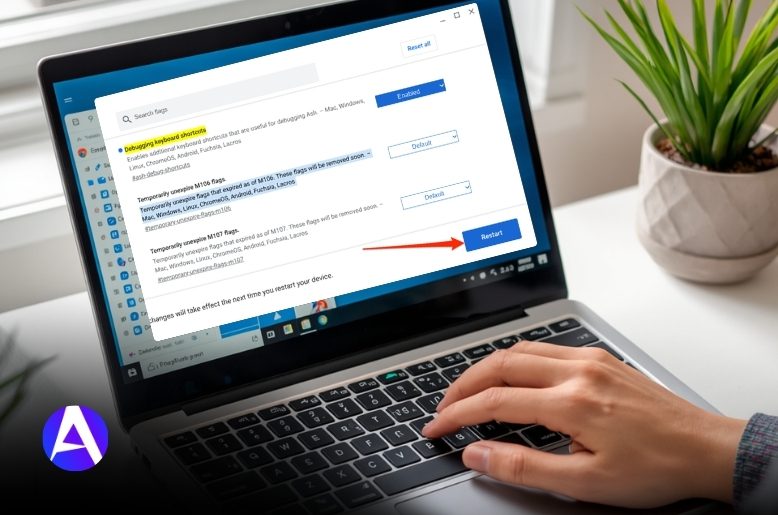
These programs generally call for the connection of a mobile phone to a PC through USB. In many recent Android versions, it is also required to enable Developer Options and USB Debugging (Settings → About Phone → tap Build Number seven times).
These applications do not perform wonders. The chances of recovery depend on the time passed since the deletion and the data entered after the deletion.
However, these applications are capable of saving data for many users.
I’ll be honest, once I could not restore some of my own files, and it was painful. The earlier you act and the less your mobile phone is used, the more chances there are that files will be restored.
Android Specific Recovery Notes
Even if menu names vary between different brands, the ideas behind them are the same:
- Samsung Galaxy: The first step is to check the Recycle Bin in Gallery, followed by Samsung Cloud.
- Google Pixel: Use Files by Google and Google Photos to recover lost files because Pixel uses stock Google applications.
- Motorola: Use Files by Google, just like Pixel.
- OnePlus: The File Manager has a Recently Deleted folder and uses Google’s applications.
- Xiaomi/Redmi: Check Gallery trash bin and Mi Cloud storage, in addition to Google’s applications.
There is no need to memorize names of buttons. You only need to remember the sequence of actions: from trash to the backup and recovery tool.
Frequently Asked Questions
Q. Can deleted files from Android devices be retrieved?
Often they can’t. The trash folder should be checked, followed by looking into the cloud storage systems. It is not simple if the files were deleted permanently and there is no copy.
Q. How long does recovering deleted files take on Android devices?
Varies. Restoring data from a trash folder can be done very quickly. Scanning with recovery software may take from a few minutes to an hour or more, depending on the amount of used space.
Q. Can files be recovered with no backup?
In many cases, they can. For example, the trash can be accessed without a backup or jailbreaking the system. The same goes for desktop recovery software.
Q. Can deleted files be recovered from an SD card?
Usually yes, because recovering from an SD card is usually more effective than recovering from internal storage due to the different manner in which data is written onto an SD.
Final Thoughts
Knowing how to recover deleted files from Android can spare you from completely losing your vital photographs, videos, documents, files, and more.
First, look out for your device’s trash / bin menu, then consider Google Photos, Google Drive, or any other online backup service you may have used. In case the data was saved on a memory card, a recovery program may help.
It is important to take prompt action. Avoid installing new applications, taking new photos, or packing your storage in case you need to restore some files because new data can overwrite the deleted files, making recovery more difficult.
If nothing can be found in the backup options and the Trash or Deleted Items folder, recovery is not guaranteed. In such a case, use trusted recovery methods and do not believe any apps that promise to perform magic.