
If you have clicked on a link that seemed broken, then the cause may have been a pop up blocker. This commonly occurs if a site needs to open a new window to facilitate payment, to log in, or to open a form or document.
The good thing is, in most cases, the blocker disabling process is not too difficult. In most cases, it is not even necessary to completely disable the pop-up blocker. It is common to simply allow pop ups for the one website that is trusted and leave the blocker enabled for the rest.
Learn how to switch off pop up blocker in Chrome, Edge & Safari to enable pop-ups for trusted sites quickly and safely.
Quick Answer:
Simply navigate to settings in your preferred browser, navigate to the site permissions section or the privacy section, and locate either pop ups and redirects or pop up windows and set them to allowed. In addition, the site that is trusted may be added to the allowed sites.
A common example is as follows.
- Chrome: Menu → Settings → Privacy and security → Site settings → Pop-ups and redirects
- Edge: Menu → Settings → Cookies and site permissions → Pop-ups and redirects
- Safari: Settings/Preferences → Websites → Pop-up Windows
Then, we can continue with a full example.
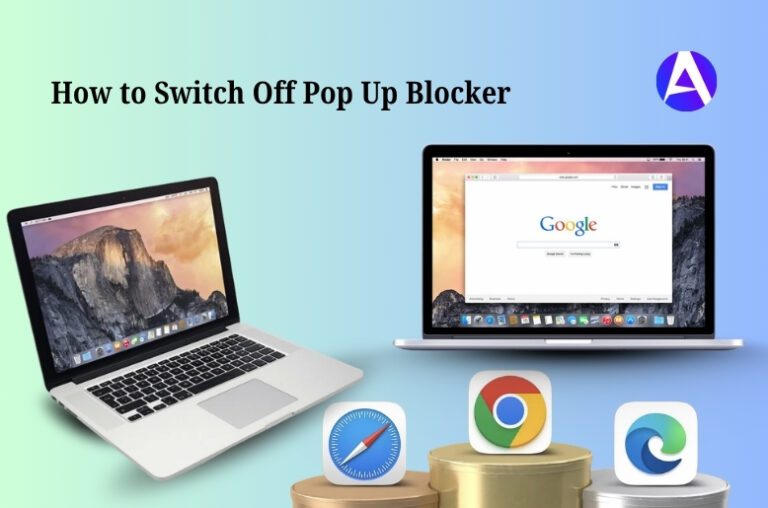
How To Disable Pop-up Blocker On Chrome?
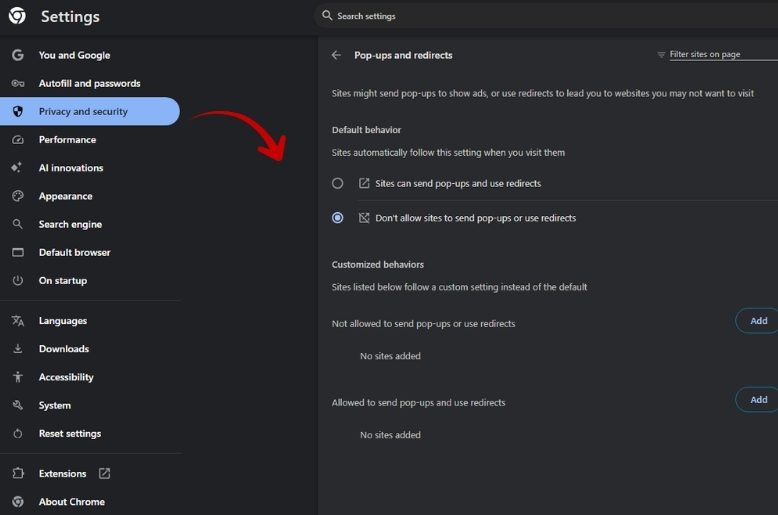
A common support request for Google Chrome is how to turn off the pop-up blocker, which is understandable since the default settings for blocking pop-ups is one of the features of the browser.
Here is the most straightforward method on a computer:
- Launch Google Chrome.
- Click the dot button at the top right.
- Go to Settings.
- Click Privacy and security.
- Go to Site Settings.
- Click on Pop-ups and redirects.
- Change the settings to allow pop-ups and redirects, or allow the specific trusted site.
It is recommended to not allow all sites to post pop-ups and redirects. Instead, add the site to Chrome’s allowed list to maintain some secure browsing.
As an example, you are the user trying to open the pop-up for a payment and are trying to confirm payment by clicking the button. If you try to pay and nothing happens, it is likely to be the pop-up blocker and not a malfunction or broken site.
How To Switch Off Pop-up Blocker In Microsoft Edge?
The process for Edge users is nearly identical.
- Open Microsoft Edge.
- Click the three dots in the upper right corner.
- Select Settings.
- Click Cookies and site permissions.
- Select Pop-ups and redirects.
- Disable blocking or add a trusted site to the allowed list.
In newer versions of Edge, the setting is usually found under site permissions. If you are following an older tutorial and the option is missing, that is most likely the reason.
How To Switch Off Pop-up Blocker In Safari On Mac?
Using Safari on Mac is a bit different, but it can still be understood easily.
- Launch Safari.
- From the top menu, select Safari.
- Depending on the version, select Settings or Preferences.
- Click the Websites tab.
- From the sidebar, select Pop-up Windows.
To enable pop-ups for a particular site or all sites, select the respective option from the drop-down menu. For newer versions of Safari the Websites tab is the right choice. For older versions, the labels may differ slightly.
Want to organize Safari even further? Learn how to remove bookmarks on a Mac to keep your browser clean and clutter-free.
How To Allow Pop-ups For A Specific Website?
Instead of disabling pop-up blocking everywhere, allowing pop-ups for that site is the best thing to do. The most sensible way to answer the question, how do I allow pop-ups for a site, is to keep your web browser even a bit secure, while allowing that page to work.
Why is that important? Not all pop-up windows are innocent, or not all are safe. Some sites use pop-ups for signing in, opening payment windows, printing forms, etc. Not all of those web pop-ups, however, are even safe. Therefore, the aim is not to do away with protection entirely, but rather to allow a well-placed exception.
To allow pop-ups to just one site, look for a heading that reads:
- Allowed to send pop-ups
- Exceptions
- Allow
- Sites can send pop-ups
- Pop-up Windows, or some variation of that
Then enter the site address, save, and refresh the site.
Rule of thumb is, if the site is one you already trusted, like your bank, school or work web site, government, or any secure site, allowing that one site is the best policy.
Why Pop-ups Still Do Not Work After Turning The Blocker Off?
Sometimes, users can disable ad blockers, but this can cause issues. Usually, one of these issues is to blame:
The extension is blocking the page.
Some ad blockers and privacy extensions will block popups, even if the browser setting is changed.
The page needs to be refreshed.
After making the setting change, be sure to reload the page.
Data from cookies or the cache is causing the issue.
The page can be refreshed, the cache can be cleared, or the browser can be restarted.
There is an issue with the website.
Not every issue with a blank screen is the fault of the browser.
If the setting looks okay but the page is not loading, try opening the page in a private window, turn off the extensions temporarily, or try a different browser
Troubleshooting Tips That Save Time
Here are a few troubleshooting techniques to employ when pop-ups are blocked and need to be addressed efficiently.
- Do not mistake a blocked pop-up for a broken link. Occasionally the system will open a new tab, and it will be done without user input.
- Be mindful of extensions that may be active in your browser. Privacy extensions, ad blockers, and security tools may block pop-up windows.
- Pop-up blockers often have a notification feature within the address bar. Look for pop-up icons that can be clicked on.
- If Chrome is the issue, use Edge and Safari, and vice versa.
- If a website is asking for pop-up permissions but looks suspicious, perform diligence and wait before acting.
If you’re working with Google Docs, here’s an easy guide on how to download an image from Google Doc without losing quality.
Is It Safe To Turn Off A Pop-up Blocker?
For most trusted websites, the risk is low. But disabling pop-up blockers universally is not recommended.
Less popular websites pushing for pop-up permissions may be site redirects, ad-trackers, and other unwanted interruptions. Restricting permissions to the one site requesting pop-ups is a better choice.
Think of it like the environmental impact of a partially open front door vs. the let it all hang out method.
FAQs
Q. Can I allow pop-ups for only one site?
Most browsers have an exception or allowed sites list so you can keep the pop-up blocker enabled and just add the specific site.
Q. Why are pop-ups still blocked after I turned the setting off?
Extensions, cache, or the site itself may be the issue. Try refreshing, disabling the extensions, or using a different browser.
Q. How do I turn the pop-up blocker back on?
Go back to the same settings for your browser and switch the block option again. Most browsers will have a single toggle switch.
Q. Do I need to turn off the blocker for every site?
No, and it’s not recommended to do so. Only the sites that you trust and require the pop-up should be allowed.
Final Thoughts
Being able to turn off the pop-up blocker is one of those small things that can save you a lot of time. Most of the time, the fix is under a minute to complete and take you to the right settings. The best part is that you don’t have to fully turn off your protection. The better option is to turn on pop-ups for a specific site and keep the rest protected.
This way you can get the payment page you need, the forms you need, and the documents you need for the day and go about your day instead of dealing with your browser.
Additional Resources
For more official help, these resources are worth checking: