
You’re not alone if your Chromebook’s touch screen registers errant touches while typing, browsing or working. While the touchscreen serves practical application, there may be occasions where it can be more of a hindrance rather than an aid. Whether you are experiencing “ghost” touches, either preventing accidental touches to your screen or simply prefer to use your keyboard and touchpad, before permanently disabling your touchscreen on your Chromebook will provide an easier experience overall.
Fortunately, Chrome OS has provided an easy method to toggle enabling/disabling the touchscreen. By using a Chrome Flag and enabling a keyboard shortcut, you can easily disable the touchscreen and re-enable the touchscreen in a fast and efficient manner.
This guide will teach you how to disable and enable your touchscreen on a Chromebook step by step, and also provide alternative methods, troubleshooting tips and answers to frequently asked questions.
Quick Answer
If you’re wondering how to disable the touchscreen on a Chromebook, follow these quick steps:
- Open chrome://flags in the Chrome browser.
- Search for Debugging keyboard shortcuts.
- Change the flag to Enabled.
- Restart your Chromebook.
- Press Search + Shift + T to disable the touchscreen.
To turn the touchscreen back on, simply press Search + Shift + T again.
How to Disable Touchscreen on Chromebook
Follow these simple steps to disable your Chromebook’s touchscreen.
Step 1: Open Chrome Flags
Open the Chrome browser on your Chromebook.
Type the following into the address bar and press Enter:
chrome://flags
This page contains Chrome OS’s experimental features. Don’t worry, you’ll only be changing one safe setting.
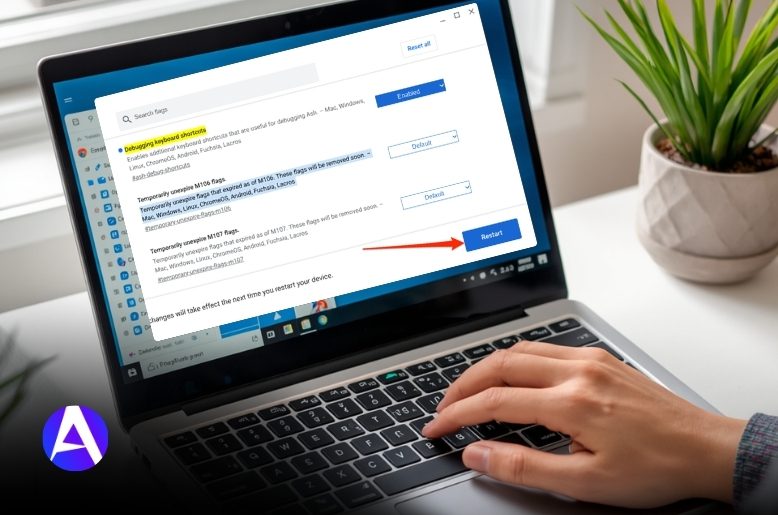
Step 2: Enable Debugging Keyboard Shortcuts
At the top of the Chrome Flags page, use the search box to search for:
Debugging keyboard shortcuts
Depending on your Chrome OS version, it may also appear as Ash Debug Shortcuts.
When you find it:
- Click the drop-down menu.
- Select Enabled.
This enables several hidden Chrome OS keyboard shortcuts, including the one used to disable the touchscreen.
Step 3: Restart Your Chromebook
After enabling the flag, a Relaunch or Restart button will appear at the bottom of the page.
Click it to restart Chrome and apply the changes.
Once your Chromebook restarts, the new keyboard shortcuts will be active.
Step 4: Turn Off the Touchscreen
Press the following keys together:
Search + Shift + T
The Search key (sometimes labeled Launcher) is usually located where the Caps Lock key would normally be.
After pressing the shortcut, you’ll see a notification confirming that the touchscreen has been disabled.
To make sure it worked, tap the screen. If nothing happens, the touchscreen has been successfully turned off.
Whenever you want to enable it again, press Search + Shift + T once more.
Quick Tip:
After enabling Debugging Keyboard Shortcuts:
- Search + Shift + T toggles the touchscreen on or off.
- Search + Shift + P toggles the touchpad on or off.
Step 5: Continue Using Your Chromebook
With the touchscreen disabled, you can continue using your Chromebook normally with the keyboard, touchpad, or an external mouse. The change isn’t permanent, so you can switch the touchscreen back on anytime using the same keyboard shortcut.
If you use wireless earbuds with your Chromebook, you can also learn how to pair AirPods to Chromebook for a quick and seamless Bluetooth setup.
Can You Disable the Touchscreen from Chromebook Settings?
Some Chromebook models also include a built-in touchscreen option within the Settings app.
To check if your device supports this feature:
- Click the clock in the bottom-right corner.
- Open Settings.
- Select Device or Accessibility.
- Look for Touchscreen or Touch Input.
- If available, turn the toggle off.
Keep in mind that not all Chromebooks include this option. If you don’t see a touchscreen setting, use the keyboard shortcut method described above.
Why Disable the Touchscreen?
There are several reasons why Chromebook users choose to disable the touchscreen.
Prevent Accidental Touches
If your hands frequently brush against the display while typing, disabling the touchscreen helps prevent unwanted clicks and interruptions.
Troubleshoot Touchscreen Problems
A touchscreen that registers ghost touches or random inputs can make your Chromebook difficult to use. Turning it off temporarily can help until the issue is resolved.
Improve Productivity
Many users rely primarily on the keyboard and touchpad. Disabling the touchscreen creates a distraction-free workspace and reduces accidental interactions.
Better for School and Work
Students and professionals often prefer keyboard-only input during classes, meetings, and presentations, making the device easier to control.
Troubleshooting
I Can’t Find the “Debugging Keyboard Shortcuts” Flag
If the option isn’t available:
- Update your Chromebook to the latest version of Chrome OS.
- Search for Ash Debug Shortcuts if the original name doesn’t appear.
- If you’re using a school or work Chromebook, your administrator may have disabled access to Chrome Flags.
The Keyboard Shortcut Doesn’t Work
If pressing Search + Shift + T doesn’t disable the touchscreen:
- Make sure Debugging Keyboard Shortcuts is set to Enabled.
- Restart your Chromebook after enabling the flag.
- Verify that you’re pressing the Search (Launcher), Shift, and T keys at the same time
The Touchscreen Is Still Working
If the touchscreen continues to respond after using the shortcut, try these fixes:
- Restart your Chromebook and press Search + Shift + T again.
- Make sure the Debugging Keyboard Shortcuts flag is still enabled.
- Confirm you’re pressing all three keys at the same time.
- Check whether your Chromebook has any pending Chrome OS updates.
If the issue still isn’t resolved, your Chromebook may not support this feature, or the device may be managed by your school or workplace.
The Touchpad Is Still Enabled
Disabling the touchscreen does not affect the touchpad because both features work independently.
If you also want to disable the touchpad, press:
Search + Shift + P
Press the same shortcut again whenever you want to turn the touchpad back on.
My Chromebook Doesn’t Have a Touchscreen
Some Chromebook models don’t include touchscreen hardware. If your device isn’t touch-enabled, the shortcut won’t have any effect because there’s no touchscreen to disable.
Can I Permanently Disable the Touchscreen?
Chrome OS doesn’t offer a permanent option to disable the touchscreen.
The built-in keyboard shortcut is designed as a quick toggle, allowing you to turn the touchscreen on or off whenever needed. While advanced users can make deeper system changes using Developer Mode, this isn’t recommended for most users because it can affect system security and stability.
FAQs
Q. How do I turn the touchscreen back on?
Simply press the “Search” + “Shift” + “T” keys again to turn the touchscreen back on. The touchscreen can also be turned back on by going into the settings of your Chromebook if the touchscreen option is available in that menu.
Q. Can I permanently disable the touchscreen on a Chromebook?
That is not possible because Chrome OS does not provide an option to permanently disable the touchscreen. Instead, the best way to toggle between having the touchscreen turned on and off is to use the keyboard shortcut, which allows you to easily re-enable the touchscreen.
Q. Does this method work on all Chromebooks?
The keyboard shortcut works with most newer Chromebooks (such as models manufactured by Acer, HP, Lenovo, ASUS, Dell, Samsung and Google), as long as they have the “Debugging Keyboard Shortcuts” feature. Older models of Chromebooks or school-owned Chromebooks may not provide access to the Chrome Flags menu, so using this shortcut to turn the touchscreen back on may not be possible.
Q. Do I need to enable Chrome Flags every time?
No; once you have enabled the Debugging Keyboard Shortcuts Chrome Flags setting and restarted your Chromebook, the Search + Shift + T will work every time you want to enable/disable the touch screen. The only time you may need to enable this flag again is if you perform a major Chrome OS update or do a Powerwash reset.
Q. Why isn’t the touchscreen shortcut working?
If the touchscreen shortcut does not work you should:
- Ensure that the Debugging Keyboard Shortcuts flag is enabled
- Restart your Chromebook after making any changes to this flag
- Ensure that you are hitting the correct keyboard hotkey combination
- If your Chromebook is managed by your school or workplace, there may be constraints on the use of this function as determined by their administrators.
Conclusion
It is helpful to know how to turn off the touchscreen on your Chromebook if you want to prevent accidental touches, fix any issues with touchscreen problems, or prefer using the keyboard and touchpad rather than touch on the screen.
The quickest way to disable the touchscreen is to enable the Debugging Keyboard Shortcuts flag, restart your Chromebook, and then press Search + Shift + T to either disable or re-enable your touchscreen whenever you want. Some Chromebook brands (Acer, HP, Lenovo, ASUS, Dell, Samsung, and Google) may also have a built-in screen disable feature. But not all Chromebooks will have that feature.
This is a fast, easy, totally reversible method of turning your Chromebook’s touchscreen off or on regardless of your brand. If this shortcut doesn’t work for you just check your Chrome version, or update your Chromebook and your touchscreen should work.
By following these simple steps, you will have complete control over your Chromebook’s touchscreen and be able to use it distraction-free, and enjoy a more comfortable experience with your Chromebook. If you’re planning to do more with your laptop, explore the best Linux distro for laptops to find an operating system that matches your needs.