
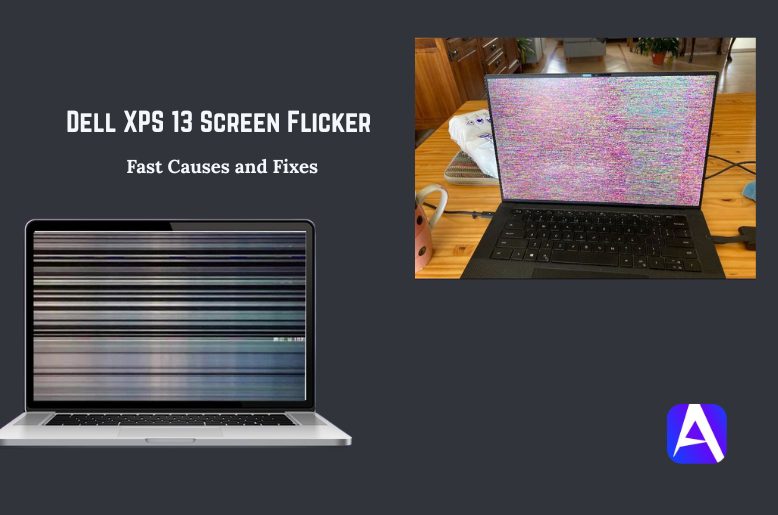
Don’t worry if your Dell XPS 13 has just started having screen flickering issues. For the most part, the reason for flickering screens is either a display driver, an incompatible app, a power-saving feature of the display (such as Panel Self Refresh), or a Windows display setting that is not functioning properly. Some XPS models may require firmware updates and if flickering is present in built-in tests, the flickering may be more likely caused by hardware issues such as an LCD panel or cable.
Why Your Dell XPS 13 Screen Flicker Happens
What can make this issue so frustrating is that while they may appear similar, the sources may not be the same at all. The different ways that these flickers can occur include, but are not limited to; video card or graphics card driver, buggy application, refresh rate disparity, HDR behavior, Panel Self Refresh, BIOS version and/or firmware version of the LCD, or physically affecting the display.
According to Microsoft, screen flickering is most commonly isolated to an issue with a monitor driver, in addition to the application being incompatible with the device. Additionally, Dell XPS systems state that both software and hardware problems could be at fault.
Because of this understanding, my method for troubleshooting would be as follows:
- First determine if Windows is at fault.
- Then verify the laptop panel.
Taking this route is not only time saving, but also prevents the need to replace potentially good hardware.
If you are noticing lines, horizontal artifacts, or distorted/scrambled pictures on your Dell XPS 13, your problem is more likely to be related to the panel, video cable, or hardware than simply a settings issue.
According to Dell’s on how to run an LCD self test, they specifically say to look for flickering, distortion, and lines when diagnosing problems with a display screen.
Try This First: The Fastest Fixes
Here is the order I would use on a real troubleshooting session:
- Use Windows + Ctrl + Shift + B to reset your display driver. Microsoft suggests this as a possible fix for flickering graphics.
- Open Task Manager. If Task Manager flickers, you can conclude that there is a problem with your graphics driver; if not, an incompatible application could be to blame.
- Update or roll back the display driver via Device Manager if this problem occurred after a recent Windows update (Microsoft specifically recommends this option).
- Disable the “Panel Self Refresh” setting via the Intel Graphics Command Center. See the “Power” tab of the IGCC for more information and note that you need an eDP 1.3 capable panel to disable this feature.
- Go to the “Settings” application > “System” > “Display” > “Advanced Display” to check HDR and Refresh Rate for Windows.
- Install BIOS, drivers, and LCD firmware updates using Dell Support. Dell specifically recommends Support Assist for downloading BIOS and driver updates, and some XPS 13 systems have LCD firmware updates to fix display flickering issues.
Step-by-Step Fixes For Dell XPS 13 Screen Flicker
1. Restart the graphics driver
This is the fastest; maybe it just needs a nudge to fix.
Press Windows + Ctrl + Shift + B.
If your screen flashes briefly to black or flickers and then comes back up again, that is a normal occurrence.
This shortcut will reset your graphics driver and possibly fix the problem at hand.
2. See whether Task Manager flickers
Open Your Task Manager With Ctrl + Shift + Esc.
As per Microsoft’s recommendation, if the Task Manager is flickering with everything else flickering, then you can probably conclude that the display driver is likely at fault.
If the Task Manager is stable while all of the other things that are flickering, then perhaps an incompatible app is responsible for what is causing the flickering. Having this one piece of information could help narrow down the list of possibilities significantly.
3. Update, roll back, or reinstall the display driver
If the display has started flickering after a windows update has happened, Microsoft recommends rolling back your display driver. If not, try to either update your driver, or uninstall and re-install it using Device Manager. Dell also recommences to use SupportAssist to check for any available driver or BIOS updates. This fix represents by itself the highest value of anything on this list, because driver issues are a common cause of display instability.
4. Update Dell BIOS and firmware
This area is actually much more important than most people are aware of. Dell has specific model based guidance for when a firmware update is required to correct the flicker.
For example, their XPS 9380 Guide says that the fix for that flicker issue is to install the latest version of the LCD firmware for the XPS 9380. Even if your XPS 13 model is older than another model, if Dell has a BIOS, firmware or LCD patch for that unit, you should install prior to concluding that your screen is going to fail.
5. Disable Intel Panel Self Refresh
Intel Graphics Command Center has a feature called Panel Self Refresh (PSR), which saves power by allowing the display panel to refresh itself without needing to communicate with the external graphics processor.
To disable PSR, open Intel Graphics Command Center, navigate to System > Power, and turn off Panel Self Refresh. This fix is relevant for the Dell XPS model when experiencing flickering due to issues with the built-in display.
6. Turn off HDR temporarily
All Dell XPS computers offer a high dynamic range (HDR) feature, but some of them may experience screen flicker when using HDR at a low brightness level. If your system is configured for HDR, you can turn it off to see if that resolves the flicker issue.
You can find the location of your HDR settings by going into Settings > System > Display.
There are also two different locations for your HDR settings depending on whether you are using your computer on battery or plugged into the wall. It is advisable to turn off HDR first before attempting to guess what will work to fix the flickering screen on your Dell XPS at low brightness.
7. Set a stable refresh rate
If you see a difference in your refresh rates, the display may appear unstable, appear to tremble, or appear to terminate suddenly.
You can use Microsoft’s Windows display settings to change your refresh rate using:
Settings >> System >> Display >> Advanced Display, and it is best to use a mode that is compatible with your display, rather than forcing a mode that is dynamic/inconstant. The change in flicker as you switch refresh rates would also be a good indicator.
8. Test in Safe Mode or with a clean app environment
If your issue occurs in regular Windows, but does not occur when you are in Safe Mode, there is a high chance the issue is related to software. Microsoft suggests using Safe Mode if the screen is not being presented properly when you are troubleshooting.
This is particularly valuable if you are investigating a problem with an application that uses browser technology, an application that requires a video, or an graphic heavy application.
How To Tell Whether It Is Software Or Hardware
Identify if it is the hardware or software that will be causing your problems with the monitor. This is the part that most people are really interested in, because nobody ever wants to buy a new monitor unless they absolutely have to.
It is probably software if:
If the flickering issue started after a Windows upgrade, a driver upgrade, or an application was added to your system, then it is likely an issue with software rather than hardware.
Your external monitor shows features as normal, while the Task Manager exhibits the same flickering that is seen on your other screens. When booting into Safe Mode, it is noted that this will help to improve the flickering. It is common for problems to arise due to driver issues, app conflicts and display settings.
It is probably hardware if:
The screen flicker can be seen during the LCD built-in self-test on the Dell laptop (BIST or Built-in Self Test) as well as in the BIOS and would be made worse by moving the lid or by adding new symptoms such as lines of flickering on the dell xps 13 or other visible defects in the display.
The built-in LCD testing feature is designed to identify if the problem is with the display (LCD itself) or if the problem originates in the video card and/or computer settings. If one or more of the solid colour test patterns show instability, then you can conclude that you are not experiencing a simple Windows related problem.
Run Dell’s LCD Built-In Self-Test
This is perhaps one of the best tests on this list of all time. According to Dell, turn your laptop off, unplug any devices attached, and press and hold the D key, while pressing the Power button to turn on your laptop. You should continue to hold the D key down until you have seen the color display appear on your screen.
The function of the test is to display different colours so that you can see how the display functions properly when there are no Windows, drivers, or applications running on your laptop to affect and/or intercept the display functionality of your laptop.
What are you looking for? You are simply looking for a clean and steady picture after letting 100% of the display test complete. If your display has no flickering, no lines, and no distortion during the BIST completion, the display hardware inside your laptop should not be the source of your problems.
If the flickering, lines, or distortion continue during the BIST, then it is likely that there will be a discussion about hardware repair needed for either your laptop screen or the internal connector to your laptop’s display. Dell has successfully used the BIST test in its documentation as a test used to isolate issues with a display (i.e. flickering, blurry image, horizontal or vertical lines) within the display of the laptop itself.
When The Fix Is Not Enough
Sometimes the cause of your issue has nothing to do with Windows. A loose internal display cable or connector might cause flicker when you open or close the lid. If the issue only happens when the computer is under load or charging, then there could be a power state change at play as well as other problems.
Reports in the Dell community regarding flicker in the XPS systems show that issues can arise from charge level, CPU load and brightness settings, which is a good indicator that performing a full initial diagnostic is going to be worth the effort rather than immediately assuming the worst.
Should a full initial diagnostic show display cable issues; your repair options would be reseating or replacing the display cable; replacing the LCD panel or determining if the graphically processing unit (GPU) on your laptop has a hardware fault.
Finally, as stated by Dell’s support, there are a number of sources that could cause display issues including wrong display settings; outdated drivers; software conflicts; or a hardware fault, thus, the final step in troubleshooting is about identifying which of those categories your display issue fits.
How To Keep It From Coming Back
Keep the graphics drivers and BIOS up-to-date by either using Dell Support Assist or going to the Dell Support site. Try to avoid using an extremely low brightness setting if your screen appears to be having issues. Always use the recommended refresh rate instead of trying different refresh rates that are not listed as supported by your model. If applicable, keep an eye on the details listed on Dell firmware updates for display-related fixes.
And just in case you’re wondering, don’t ignore a flicker that continues to worsen. A very brief flicker every now and then is irritating in comparison to consistent flickers that have progressed to vertical lines, total screen blackouts, or screen distortion; this is an indicator you should stop viewing it as a software problem and begin considering it a hardware-related issue.
FAQs
Q. Why does my Dell laptop screen flicker?
The primary reasons for a Laptop’s screen flickering are display driver problems, incompatible programs, display settings, Panel Self Refresh, HDR operating issues, and also in many instances, problems with hardware. The most common causes given by both Microsoft and Dell are driver or configuration issues
Q. Why does my screen flicker in full screen?
Running applications in full-screen can result in making it easier to cause driver, refresh rate or HDR type of issues. This is due to how the Graphics Processing Unit (GPU) and display communicate when they are run in full screen. Thus, the easiest way to begin troubleshooting is to try another refresh rate, update the graphics driver or turn off HDR temporarily during your troubleshooting session.
Q. Why does my screen flicker when I scroll?
Scrolling introduces display driver or rendering issues in websites and applications that use hardware acceleration. If the Windows Task Manager reports a stable environment when watching a website or application, yet at the same time, it reports the flickering issue, then the application where the flickering occurs is likely the innocent party.
Q. Can a Dell dock cause screen flicker on XPS 13?
Yes. Nearly all laptops with docking stations experience some level of screen flickering when connected to a dock, primarily due to compatibility problems between the settings of docked vs docked devices. If your XPS 13 flickers while docked, then either your dock is misconfigured, you need to change your display cable/refresh-rate settings or there may be issues related to graphics drivers and/or monitor compatibility.
Check for firmware updates on the dock and graphics drivers; moreover, please verify that your graphics settings are not causing any problems, and if they are not, try different cables and/or monitors.
Final Takeaway
In helping you resolve screen flicker issues with your Dell XPS 13, you should start by working methodically through the following procedures: Reset graphics driver, view Task Manager, update driver or roll back driver, disable Panel Self Refresh, test HDR or Refresh Rate Settings, run Dell’s LCD Built-in Self-Test (BIST) to determine if the problem lies within the display panel itself. This process is very efficient, practical, and far superior to trial and error.