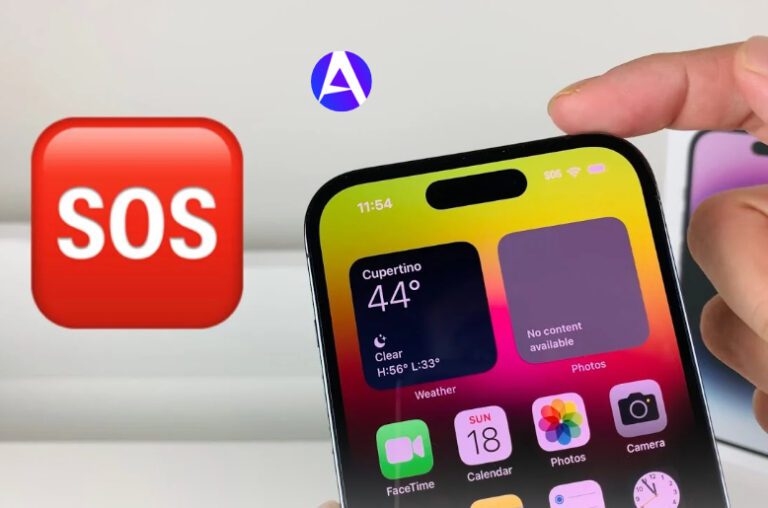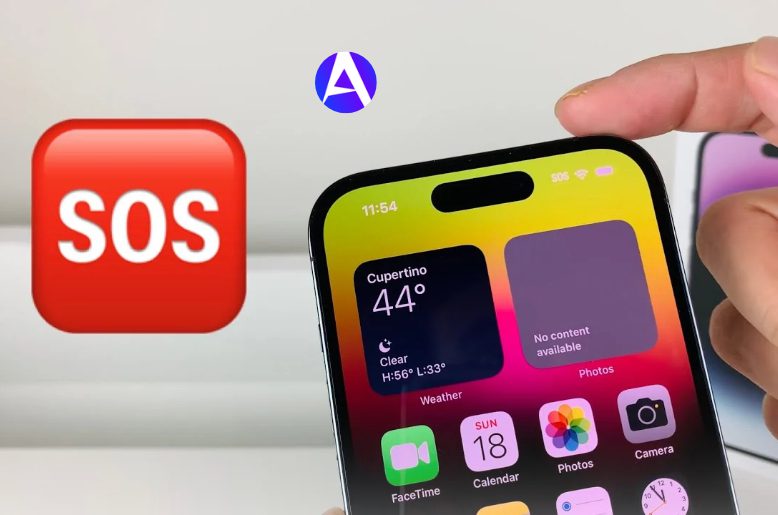
When you see either SOS or SOS Only, it indicates your iPhone’s failure to connect to its service provider but still allows you to make emergency calls. Try turning on Airplane Mode for 15 seconds and then turning it off.
If this step does not fix the issue, you might want to restart your phone.
I distinctly remember the first time I encountered this problem. I was in a parking structure sending a message to a friend to inform him that I was going to be late when the SOS message replaced the bars showing signal strength on my phone.
I completely panicked. Did I accidentally phone 911? Did I damage my iPhone? Did I forget to settle my bill with the carrier?
Actually, none of these things have happened! If you are looking at your phone with a similar SOS caption right now, just relax. This is a very common problem encountered by many iPhone users, and you can fix it in a matter of minutes.
What Does SOS Mean on iPhone?
SOS or SOS Only on your iPhone’s status bar indicates that the phone has lost connection with the mobile network of the operator but is able to place emergency calls through another mobile operator.
For example, in America, the iPhone will use the towers of another operator for emergency calls such as calling 911.
Take an example where you want to enter a gym with a membership card but have lost it. The gym staff will not let you into the gym for your workout, but in case of an emergency, they will allow you in and help you get in touch with the authorities. iPhone works in the same.
The two things that the symbol indicates:
- Your phone is defective.
- The emergency services have not been contacted.
It simply informs you that your phone has no access to the regular mobile services.
What Does SOS Mean on iPhone Next to Wi-Fi?
This question trips up a lot of people. When SOS appears next to the Wi-Fi icon, you’re looking at two separate connections:
- The SOS label (where your signal bars normally sit) shows your cellular connection.
- The Wi-Fi icon shows your wireless internet connection.
They work independently, so your iPhone can show SOS and stay connected to Wi-Fi at the same time. You can still browse the web, stream videos, use apps, and send iMessages over Wi-Fi.
Only regular cellular calls and standard texts stop working.
I found this out at a coffee shop. My phone said SOS, yet WhatsApp and iMessage worked fine. Wi-Fi quietly carried the load while my cellular connection was out to lunch.
Why Does My iPhone Say SOS or SOS Only?
Your phone isn’t able to connect with the network of your provider at the moment. The following are some common reasons for this.
Poor signal or signal loss:
This is a common issue too. Basements, elevators, parking places, rural highways, and buildings with thick concrete walls do not let cell phone signals through.
If your iPhone gets SOS status in a particular location, then coverage is the likely reason. Simply go outside or near the window and check your signal again.
Carrier’s outage:
It may happen that the problem is not with your phone. When the provider’s towers fail, all customers in that area see SOS status. You may wonder why your iPhone shows SOS today when it worked perfectly before.
This is probably due to an outage. Check with your friends or co-workers to see if they experience the same issue.
Problems with SIM card and eSIM:
The issue with the physical SIM card can cause disconnection; a dirty or damaged SIM card can also lead to this situation.
When the eSIM profile was not set up properly, it may also cause disconnection.
Problems with Your Account or Billing:
If your service provider suspends or restricts your account, or you are overdue, it can interrupt regular service.
Your device will show “SOS” but still connect to the emergency service.
Improper Settings or Software Issues:
A faulty carrier settings file, an old version of iOS, or just some little software problem can create confusion when connecting to the service.
Sometimes you just have to reboot your device to make it work.
Foreign Devices or Regionally Locked Devices:
Some areas demand that a phone be registered under an IMEI before an iPhone from abroad can work with a local carrier. Without this registration.
The phone may show only SOS though everything else works.
What Triggers an SOS on an iPhone?
This question is commonly asked since people are confused between two separate concepts. Let’s begin by clarifying these concepts.
The SOS displayed in the corner means your carrier connection is disrupted. The SOS indicates that you are in an area where there is no signal, have lost your SIM, or even have issues with your account.
On the other hand, the Emergency SOS feature is entirely your doing. Depending on your iPhone settings, this may involve holding down the side button and one of the volume buttons, or pressing the side button five times in a row.
Your phone will issue a series of loud beeps that will come from your iPhone as you are making a call to 911. My friend once received Emergency SOS accidentally when she was running with her phone in a tightly strapped armband. After she was done with a long series of loud sirens.
She spent every minute for the next 5 minutes providing reassurances to the dispatcher about her well-being. This was the Emergency SOS feature, not the SOS signal.
If you ever get a call accidentally, go to Settings → Emergency SOS and change the options you are using.
Can You Make Calls or Send Texts When Your iPhone Says SOS?
You’re not completely cut off. Here’s what works and what doesn’t:
| Action | Works with SOS? |
|---|---|
| Emergency calls (911) | Yes |
| Regular phone calls over cellular | No |
| Standard SMS text messages | No |
| Cellular data (mobile internet) | No |
| Wi-Fi browsing and apps | Yes, if connected |
| iMessage over Wi-Fi | Yes |
| Wi-Fi Calling | Yes, if enabled and supported by your carrier |
If you can find Wi-Fi, you can still reach people. And if you’re ever in real danger, your phone still connects you to help.
SOS Only on iPhone: How to Fix It
Want to regain your connection? Follow the steps below in this order. The preceding ones should resolve the issue more often than you think!
1. Enable Airplane Mode Temporarily
This is like the regular “turn it off and turn it back on” fix and the first one suggested by Apple.
- Open Settings (or swipe down to open Control Center) and activate Airplane Mode.
- Wait at least 15 seconds and disable Airplane Mode.
This will force your iPhone to forget about everything and try to connect to the towers of your mobile service provider again.
Whenever someone asks me how to fix an iPhone in SOS mode, I always suggest this approach first because it works for more than half of the cases.
2. Restart Your iPhone
If Airplane Mode does not help, do a full restart. Switch off your iPhone completely. Wait for 30 seconds and switch it on again. It’s not fancy, but it has saved me time and time again.
3. Check Your Cellular Coverage and Carrier Status
Before you blame your phone, rule out the obvious. Ask yourself:
- Am I in a basement, garage, or rural area?
- Does anyone else on my carrier have the same problem?
- Is there a known outage in my area?
Check your carrier’s website or app for outage notices, or try a service like Downdetector. If your carrier has an outage, you can’t fix anything on your end. Wait it out, and your phone should reconnect on its own once service returns.
4. Check Your SIM Card
With a physical SIM card, take it out using a special tool. Clean it gently and insert it back in.
If it is broken or bent, ask the provider for a new card.
If you have an iPhone with Dual SIM, make sure you have activated the right line:
Go to Settings → Cellular (might be called Mobile Services).
Check the desired line, and if it is turned off,f tap Turn On line.
If it does not appear in the settings, contact your provider.
5. Update iOS and Carrier Settings
Outdated software can quietly cause connection problems. Connect to Wi-Fi, then:
- Update carrier settings: Go to Settings → General → About. If an update is available, a prompt appears.
- Update iOS: Go to Settings → General → Software Update.
Just put a new SIM in your phone? You’ll need the carrier settings for your new provider too. And if you have an older phone on a 3G network, open Settings → Cellular → Cellular Data Options and make sure Enable LTE is on.
6. Contact Your Carrier or Apple Support
If nothing has worked, the problem probably sits on the account side, and only your carrier can see that. Ask them to:
- Confirm your account is active and in good standing.
- Verify there are no outages in your area.
- Check that your device isn’t blocked or barred.
- Make sure your data plan is set up correctly.
- Confirm whether you need IMEI registration if you bought the iPhone abroad.
If your carrier says everything looks fine, Apple Support can check for hardware problems. On iPhones running iOS 18 or later, the Apple Support app can also run extra diagnostics to pinpoint the cause.
How Do I Turn Off SOS Status?
Here’s the honest answer: you can’t flip a switch, because SOS status isn’t a setting. It’s a symptom that appears when your phone can’t connect to your carrier. To turn off SOS status, fix the connection problem behind it using the steps above. Once your iPhone reconnects, the SOS label disappears on its own and your signal bars return.
Want to turn off the Emergency SOS feature instead, maybe because of accidental triggers? Go to Settings → Emergency SOS and adjust the options for pressing and holding or pressing five times.
SOS vs. SOS Only vs. No Service
These three labels sound alike, but each means something different:
- SOS / SOS Only: Your carrier network is unreachable, but emergency calls can still go through other carriers’ networks.
- No Service: Your phone isn’t connected to any cellular network at all.
- Searching: Your iPhone is still looking for a signal and hasn’t found one yet.
Here’s an easy way to remember the difference. SOS is a locked front door with an emergency exit still open.
No service is a closed building. Searching is you walking around the building, trying every door.
Have an iPhone 14 or later? If you’re completely outside cellular and Wi-Fi range, you may be able to use Emergency SOS via satellite to reach help.
FAQs
Q. Why does my iPhone suddenly give SOS?
Usually, a temporary loss of the cellular service, an issue on the network, or a software problem may be the reason for this. Just toggle Airplane Mode, and then restart the device.
Q. How do I take my iPhone out of SOS mode?
Turn Airplane Mode on for 15 seconds, and then disable it. In case this doesn’t help, restart the device, check out your SIM card, or look for the updates for the carrier settings.
Q. Does SOS mean that my phone is out of order?
Generally, no. SOS is an indication of a network or a billing problem, much more common than a hardware malfunction.
Q. Is it possible to use Wi-Fi when my iPhone shows SOS?
Yes, as Wi-Fi can function without relying on cellular networks.
Q. Will I be able to send text messages when my phone says SOS?
Normal SMS will not be available, however, using iMessage and various apps will be possible through Wi-Fi.
Q. Does SOS mean that help has already been summoned on my iPhone?
No, the notification is only informing you of the situation. Your phone will only alert the authorities when using Emergency SOS or if you dial 911 manually.
Q. Why is it showing SOS when my colleague’s device is fully functioning?
In this case, the problem can be related to the carrier, SIM cards, or account problems as opposed to the location of the phone. A device with a different network can have full reception while yours won’t show any signal. Check your carrier for further details.
Final Thoughts
Finding “SOS” on your iPhone can be distressing, unless you know that it’s seldom a serious issue. In most cases, your phone is only indicating that it cannot connect with the provider at the moment.
It is advisable to try the easiest troubleshooting steps first, such as enabling Airplane mode, restarting the device, then checking the SIM card and the settings. Based on my past experiences with SOS, I have learnt to be calm and carry out troubleshooting step by step. I hope that this guide will help you to do the same.
Additional Resources
- Apple Support If You See SOS, No Service, or Searching on Your iPhone or iPad: Apple’s official troubleshooting guide for fixing SOS, No Service, and Searching network problems.
- Apple Support Use Emergency SOS on Your iPhone: Explains how Emergency SOS works, including emergency calling, satellite connectivity, and SOS settings.
- Downdetector Network and Carrier Outages: Helps users check real-time reports of network outages and service disruptions.