I can still recall the day when I downloaded a 90 GB game on the release date. I had some food to nibble on, a free night to myself, and a good internet plan, which I was mildly proud of. However, Steam showed poor downloading speed, something that resembled the very old dial-up. Even after waiting for 2 hours, I still was there, staring at the progress bar that hardly moved.
Does that ring a bell? You are definitely not alone, since slow downloads are among the most common complaints on Steam, and what causes them is often a mystery. After learning through a long process of trial and error.
I found out the factors causing bad downloads. In this guide, I will teach you how to speed up your download on Steam and where the bottleneck is located.
Quick Summary: The 10 Fixes at a Glance
Short on time? Here’s the whole list.
| Fix | Best For |
|---|---|
| Pause, restart, and reconnect your download | Downloads stuck at 0 B/s |
| Run an internet speed test | Identifying whether the issue is with your internet or Steam |
| Change your Steam download region | Overloaded or crowded download servers |
| Remove bandwidth restrictions | Downloads with fluctuating or capped speeds |
| Disable download throttling | Slow downloads while streaming or using other apps |
| Close unnecessary background apps | Apps consuming bandwidth or system resources |
| Switch from Wi-Fi to Ethernet | Unstable connections and inconsistent download speeds |
| Temporarily disable your VPN or firewall | Download interference caused by security software |
| Set Steam to high priority | Slow download processing and disk usage |
| Clear the Steam download cache | Frozen, stuck, or unusually slow downloads |
Why Is Steam Download Speed So Slow? 2026 Fixes
Prior to changing any given settings, it is essential to comprehend the situation at hand. A common question pertains to why Steam downloads slowly in 2026, and the answer is usually one of the following:
- Your internet connection happens to be slower or less stable than you might think.
- The Steam server in your region may be busy, especially during important sales and game launches.
- The Steam setting may have a bandwidth limit or throttle that you forgot about.
- Other programs running in the background consume some of your bandwidth.
- Your disk may not process files as quickly as they are received.
- There could be problems originating from your VPN/firewall or a Wi-Fi connection.
In order to visualize the situation, imagine your download as water flowing through a series of pipes. Your server is a reservoir, your internet is a main pipe, your router/Wi-Fi is piping, and your disk is a bucket at the end. The flow cannot exceed the size of the narrowest pipe in the series.
Mbps vs. MB/s: Understand the Difference and Avoid Download Speed Confusion
At first, I found this embarrassing. Internet companies show their speeds in megabits per second (Mbps). Steam, on the other hand, gives its speed information in megabytes per second (MB/s), even though a byte is eight times larger than a bit.
Therefore, you’ll need to convert Steam’s figures in order to understand how fast your Internet is and whether it’s working.
If you multiply Steam’s number by 8, for instance, a 12 MB/s download will equal 96 Mbps. If you’re on a 100 Mbps plan, then you’re not facing any issues.
So make sure you do this calculation right away and don’t waste an hour looking for problems. Many downloads that seem to be slow are actually normal processes.
Quick Fixes to Speed Up Steam Downloads Right Away
When a game is waiting and the clock is ticking, start here. All of these together take about five minutes.
1. Pause, Restart, and Reconnect
It sounds too simple to work, but it often does. Pause the download, wait a few seconds, and resume. If that fails, fully exit Steam (right-click the tray icon and choose Exit), then reopen it.
I’ve fixed a “0 B/s” download this way more times than I’d like to admit. Steam sometimes locks onto a bad connection to a content server, and a restart forces it to find a fresh one.
While you’re at it, restart your router. Unplug it for 30 seconds, plug it back in, and give it a minute to reconnect.
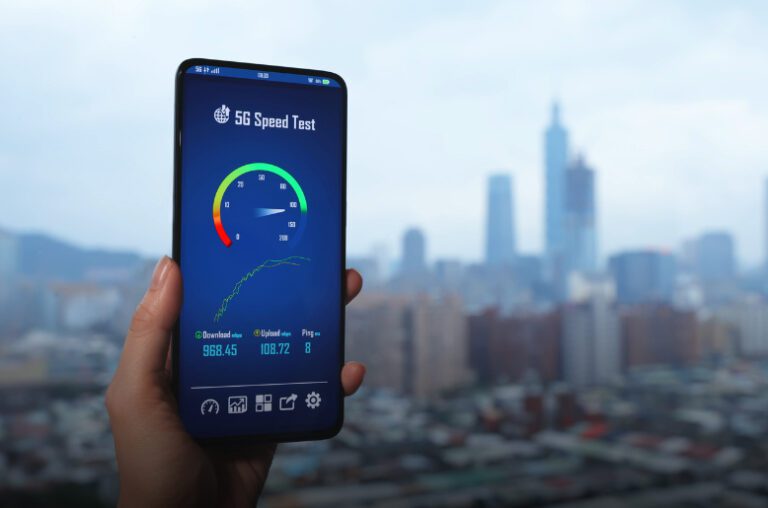
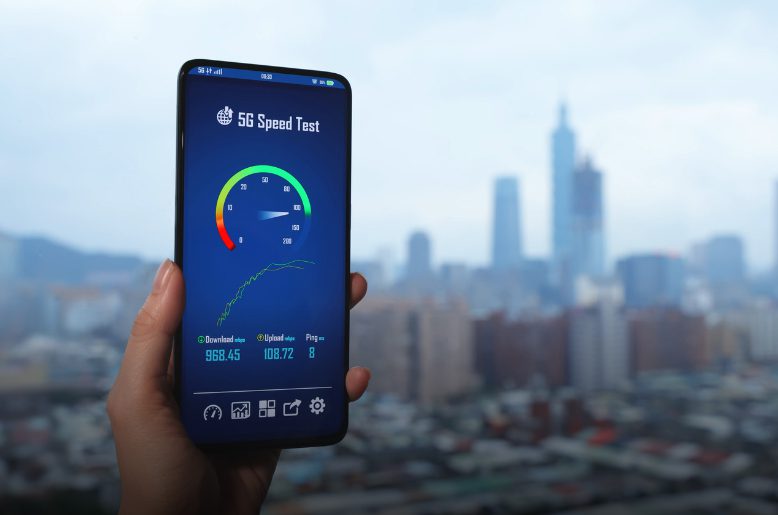
2. Run a Speed Test
This is the “is it me or Steam?” check. Run a speed test on another device or in your browser while Steam sits idle.
- Speed test is far below your plan: Your connection is the problem. Restart your modem and router, and contact your ISP if nothing changes.
- Speed test looks fine, but Steam crawls: Look at Steam’s settings, its servers, or your PC. Keep reading.
Optimize Your Steam Download Settings
If your connection checks out, open Steam’s own settings next. These fixes answer the question people ask most: how can I boost my Steam download speed without spending time?
3. Modify Your Download Location
Steam divides the delivery of its services into regions. However, it does not mean that the place selected by default is always the better one. To change your Steam download region:
Start up Steam and go to the section Steam > Settings > Downloads.
In the section Download Region, choose a different city.
Restart Steam and resume your download.
Start with the nearest city. If your regionally located server is busy, select one from a neighboring region or one that has just started, where it’s early morning. On one occasion, I switched the default region to one located around 300 miles away, and I doubled my speed. It was like being in an empty line to pay in a supermarket.
4. Disable the Download Speed Limiters
Steam has an option to limit the speed of the download, either accidentally enabled or due to ignorance of its existence.
- Go to Steam > Settings > Downloads.
- Find Limit bandwidth to.
- Make sure that it is disabled.
Even a quite high limit may cause download speed fluctuations, and thus it should be turned off. Remember to check this every time you adjust the Steam bandwidth limit settings.
5. Disable the “Throttle Downloads When Streaming” Setting
Under the same Downloads settings found previously, look out for the Throttle downloads while streaming setting.
This option slows down downloads when Steam thinks that you’re watching videos or using Remote Play. While the idea may sound good on paper, it can turn against you in practice. Make sure to turn off this feature.
6. Shut Down Applications That Take Up a Lot of Bandwidth
Your device is probably doing plenty of stuff that you do not know. Instances of web browsers loaded with numerous tabs, different gaming platforms (Epic, EA, Ubisoft), and cloud synchronization services such as OneDrive and Dropbox can affect the speed of your downloads in Steam.
- If you want to find out what consumes your bandwidth, use these steps:
- Pressing Ctrl + Shift + Esc helps you access the Task Manager.
- Choose the Processes tab and select the Network column.
You can stop or turn off any applications that use too much network bandwidth.
If you are on a Mac computer, you should simply use the Activity Monitor and select the Network tab.
7. Use Ethernet Instead of Wi-Fi
If you remember only one tip from this article, make it this one: plug in a cable if you can. Wi-Fi is convenient, but walls, distance, and interference from neighbors’ networks all hurt it. A wired connection runs faster and, more importantly, far more stable.
I resisted for years because running a cable felt like a hassle. When I finally did it, my downloads went from jumpy to smooth and steady.
Can’t run a cable? Move closer to your router, or switch to the 5 GHz band, which usually performs better at short range.
8. Turn Off Your VPN and Firewall Temporarily
VPNs add extra steps between you and Steam’s servers. Some third-party firewalls and security suites also inspect traffic in ways that slow it down. Disable your VPN, temporarily pause any third-party firewall, and restart the download.
If your speed jumps, you’ve found the culprit. Then look for a setting that lets Steam bypass the VPN, or add Steam as an exception in your security software. Turn your protection back on as soon as you finish testing.
Tune Your PC for Faster Steam Downloads
Many guides stop at settings and networks, but your computer matters too. This section is also your best bet for how to make Steam download faster on Windows 11.
9. Set Steam to High Priority
This tells Windows to give Steam more attention.
- Press Ctrl + Shift + Esc to open Task Manager.
- Open the Details tab.
- Right-click steam.exe, choose Set priority, and select High.
This helps your CPU decompress and process game files as fast as they arrive. Keep in mind that the setting resets when you close Steam, and it won’t fix a slow connection. Think of it as a small nudge, not a miracle.
10. Clear the Steam Download Cache
Over time, Steam’s temporary files can get corrupted or bloated, which sometimes causes stalls and strange speed drops.
- Go to Steam > Settings > Downloads.
- Click Clear Download Cache.
- Let Steam restart, then log in again.
Clearing the cache won’t delete your installed games, but keep your login details handy. It doesn’t guarantee a speed boost, but it works well when downloads freeze or misbehave.
Windows 11 can see some improvements in performance if you follow these extra tips:
Switch off Delivery Optimization sharing. Your PC may be using your internet to supply updates, and it would be better to disable that feature in Settings > Windows Update > Advanced options > Delivery Optimization and turn Allow downloads from other PCs off.
Make sure everything is up to date. In Steam, open Steam > Check for Steam Client Updates, then run Windows Update and refresh your network adapter drivers. Obsolete drivers can cause unpredictable deceleration that is difficult to recognize.
Clear free space on your disk. An overwhelmed hard drive can slow down installations; thus, it is necessary to have a sufficient amount of free space on the drive before commencing downloads.
Quick Troubleshooting: Determine the Source of Your Bottleneck
There’s no need to guess. Let your symptoms lead you to the solution:
Slow speed test result:
This means your internet is at fault. Reboot your router, use an Ethernet connection, or reach out to your ISP.
Speed test works, but speed is low when using Steam:
Change your download location and make sure there are no limits on the speed. This is the answer to the common “Steam is downloading slowly when internet is fast” problem.
Speed fluctuating between high speeds and then dropping to zero:
Check for possible issues with your disk or other programs running.
Downloading speed stuck at 0B/s:
Restart Steam, change the location, and clear your download history.
Speed drops during streaming:
Disable throttling. This is definitely better than trying to guess, which is what I did for way too long.
Frequently Asked Questions
Q. Why is my Steam download speed so slow?
Steam downloads may be slow because of a weak internet connection, busy Steam servers, incorrect download settings, background apps, or limited disk performance. Check your bandwidth settings and try a different download region.
Q. How can I make Steam download games faster?
To make Steam download games faster, remove unnecessary bandwidth limits, close other downloads, use a wired Ethernet connection if possible, and choose a suitable Steam download region. Restarting Steam may also help.
Q. Does changing the Steam download region increase download speed?
Yes, changing the download region may improve speed if your current region is experiencing heavy traffic or server issues. Open Steam Settings, select Downloads, and choose another nearby region to test.
Q. Why does my Steam download keep dropping to 0 B/s?
Steam may drop to 0 B/s while processing game files, unpacking updates, or writing data to your drive. Network interruptions, disk bottlenecks, or server issues can also cause this problem. Check Steam’s Downloads page to see whether disk activity continues.
Final Thoughts
It is helpful to know how to speed up Steam downloads. It is certainly possible to find some extraordinary configuration, but it is also about identifying the bottleneck.
Begin with simple solutions, then make the necessary adjustments in the settings and check the network capabilities along with the PC if the speed is too slow.
Do not forget to be realistic, since the server’s workload, internet bandwidth, and disk performance all influence the speed,d and no modification can increase your speed if the connection does not have enough capacity. So, it’s time to download the game right now